How Should You Describe Before and After Photos in Alt Text?

Why Does Alt Text Matter for Before and After Project Photos?
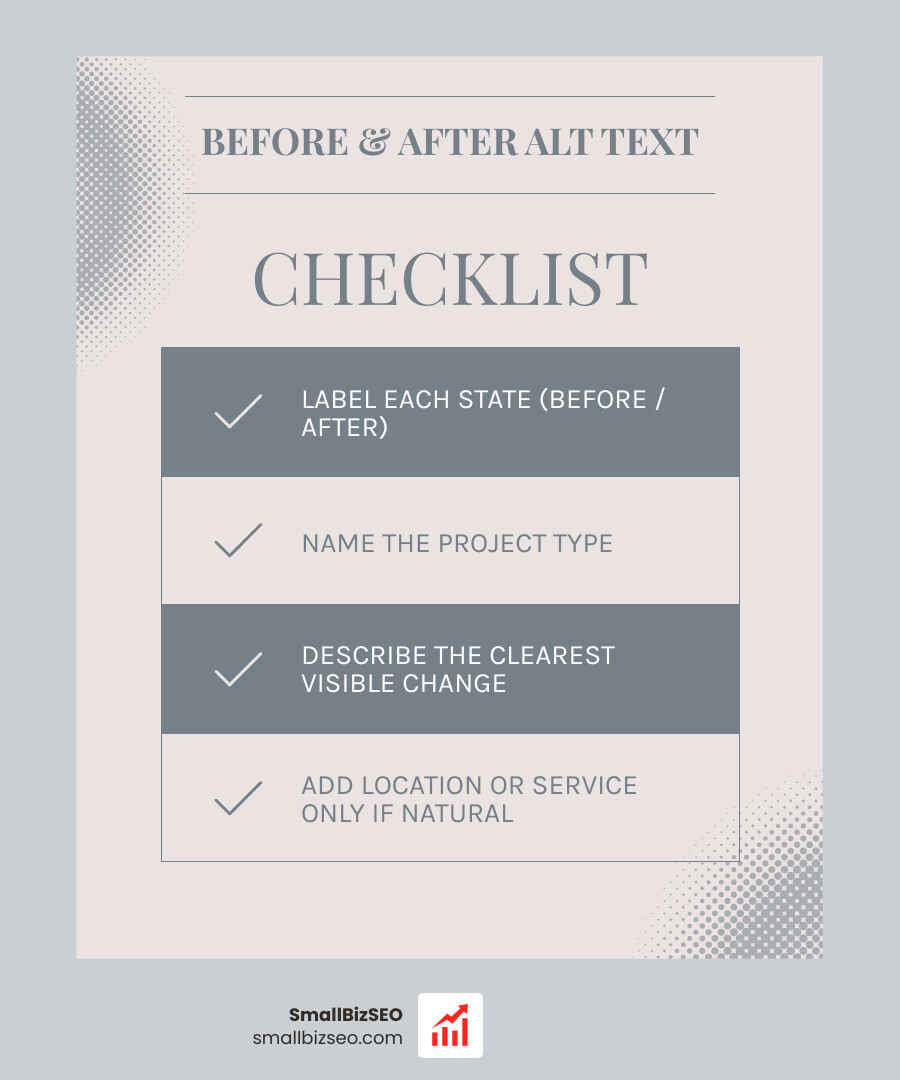
Here's how to write alt text for before and after project photos: label each state, name the project, and describe the clearest visible change. If the photos are separate files, give each its own description. For example: "Before: kitchen with dark cabinets and worn countertops." "After: remodeled kitchen with white cabinets and quartz countertops."
This helps people using screen readers understand the transformation. It also gives search engines useful context. Add a city or service name only when it is accurate and fits naturally.
I'm Clayton Johnson, founder of SmallBizSEO, where I help small businesses make their content clearer and easier to find. My SEO and content strategy work informs this guide on how to write alt text for before and after project photos.
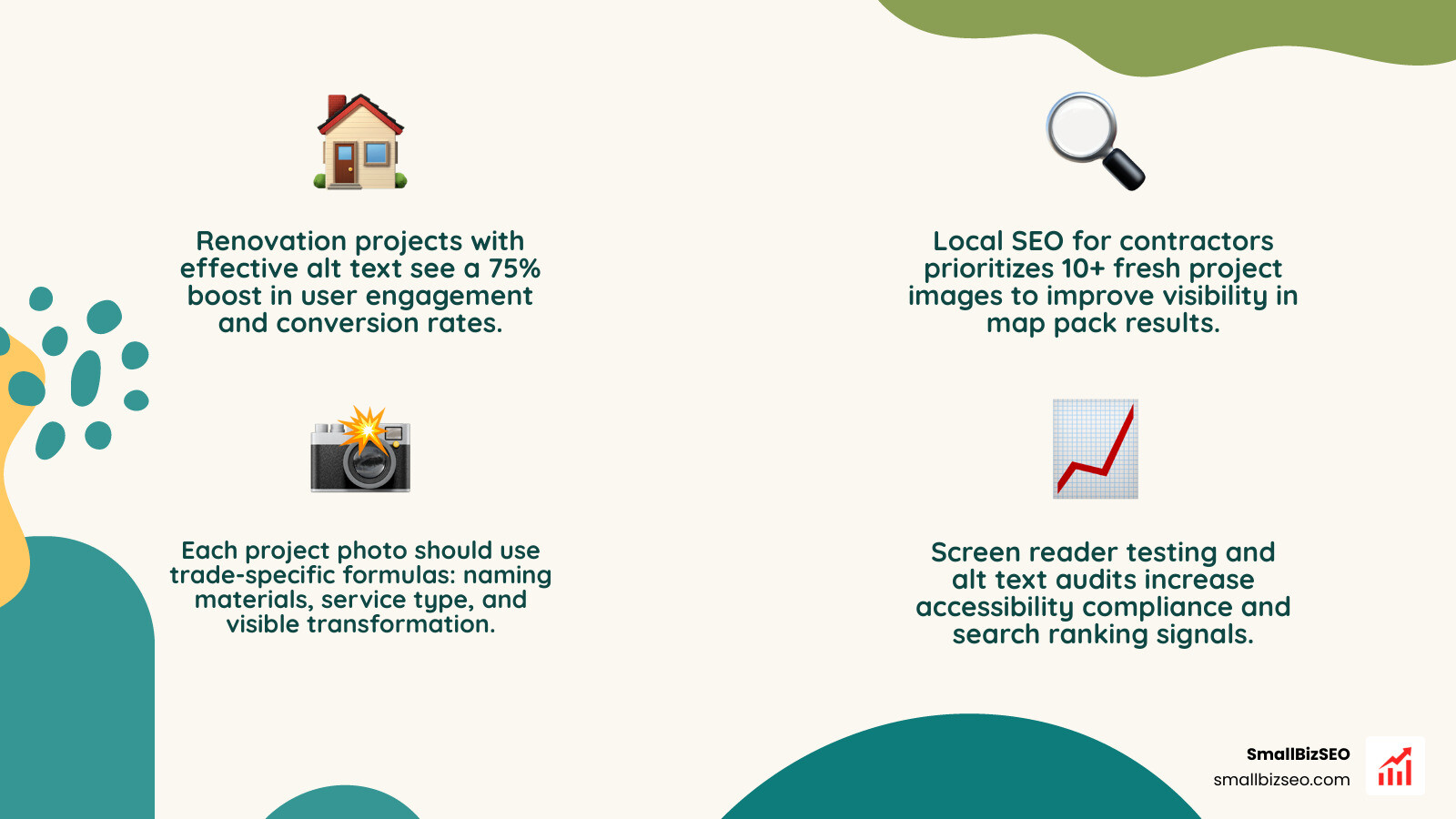
Before-and-after project photos showcase real-world craftsmanship. Whether displaying a finished roof, a cleared landscape, or a remodeled bathroom, visual comparisons prove quality. Websites featuring before-and-after galleries often see up to a 75% increase in user engagement because visitors love visual proof.
However, search engine crawlers and screen reader software cannot see pixels. Without descriptive alternative text, valuable visual proof remains invisible to assistive devices and search algorithms. Writing accurate alt text bridges this gap, making portfolio content accessible while strengthening local search visibility.
How Do You Write Alt Text for Before and After Project Photos?
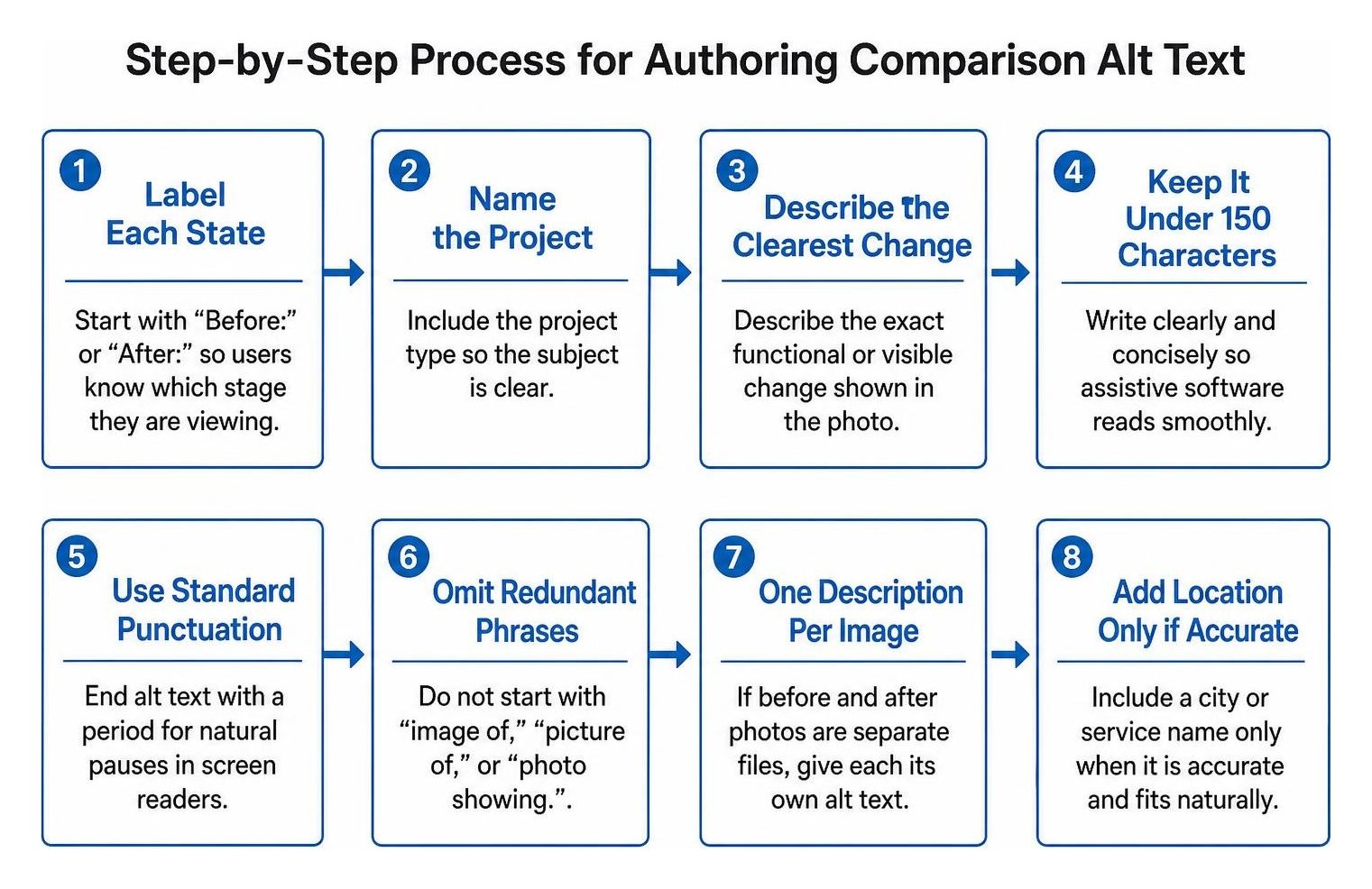
To write effective alt text for before-and-after project photos, keep the description under 150 characters, state whether the photo is the before or after view, and describe the exact functional change shown.

Writing strong comparison alt text requires clarity, conciseness, and purpose. Assistive technology reads alternative text sequentially to visually impaired users, while search engines index the text to understand image relevance.
Follow these primary guidelines when drafting alt attributes for transformation photos:
- State the phase first: Begin with "Before:" or "After:" so screen reader users immediately know which stage they are evaluating.
- Front-load key details: Place the primary subject and key materials within the first 60 to 80 characters.
- Keep it under 150 characters: Keep text concise so assistive software reads smoothly without straining short-term recall.
- Use standard punctuation: Always end alt text with a period. Screen readers insert a brief pause after periods, preventing run-on sentences with adjacent page text.
- Omit redundant phrases: Never start with "image of," "picture of," or "photo showing." Screen readers announce the presence of an image automatically.
Why Does Describing Transformation Matter for Accessibility and Search Rankings?
Describing the transformation allows screen reader users to understand what physical changes took place while providing search algorithms with clear semantic context about your services.
Following federal Section 508 alternative text guidelines and Harvard Digital Accessibility standards ensures digital content serves every user equally. For informative images like project comparisons, alt text must convey the exact informational value of the image rather than decorative filler.
Alt text directly impacts search discoverability. When optimizing comparison imagery according to image SEO best practices, clear descriptions help search engines match your portfolio items to high-intent queries. Visual search engines index descriptive alt attributes to serve visual rich snippets and image carousels, driving higher click-through rates from potential clients.
What Are the Core Rules for Writing Alt Text for Before and After Project Photos?
The core rules require labeling each image phase clearly, describing the problem in the before state and the solution in the after state, and incorporating relevant trade terms naturally.
For trade businesses and contractors optimizing digital portfolios, such as executing targeted SEO for remodeling companies, visual proof must be paired with clear wording.
| Image Type | Ineffective Alt Text (What to Avoid) | Effective Alt Text (Best Practice) |
|---|---|---|
| Combined Comparison | kitchen_remodel_final.jpg |
"Before and after comparison of kitchen remodel featuring dark oak cabinets updated to white shaker cabinets with quartz counters." |
| Before State (Single) | "Image of ugly broken roof leak repair contractor." | "Before: cracked asphalt shingles showing storm damage and water intrusion along roof valley." |
| After State (Single) | "Best general contractor top quality remodel photo." | "After: new architectural shingle installation with reinforced flashing along roof valley." |
| Landscaping Project | "Yard after landscaping work done." | "After: backyard makeover with new stone paver patio, sod installation, and perennial garden beds." |
What Are Some Before-and-After Alt Text Examples Across Trades?
Strong before-and-after alt text examples clearly highlight materials, the underlying service, and the tangible results of the project.
Profiles that regularly post fresh, high-quality project images earn significantly more calls and direction requests in local map packs. Implementing thoughtful local SEO for contractors means writing descriptions that reflect common customer search patterns without stuffing keywords.
Use these trade-tested formulas to format project photos:
- Kitchen Remodeling
- Before: "Before: outdated kitchen with laminate countertops, fluorescent lighting, and worn oak cabinets."
- After: "After: open-concept kitchen renovation with quartz countertops, subway tile backsplash, and custom white shaker cabinets."
- Bathroom Renovations
- Before: "Before: cramped bathroom with fiberglass tub insert and cracked linoleum flooring."
- After: "After: master bathroom upgrade with frameless glass walk-in shower and porcelain marble tile."
- Roofing and Exterior Restoration
- Before: "Before: storm-damaged roof with missing cedar shake shingles and exposed underlayment."
- After: "After: fully restored roof featuring architectural shingles and seamless aluminum gutters."
- Plumbing and Pipe Repair
- Before: "Before: corroded galvanized steel plumbing under kitchen sink showing mineral buildup."
- After: "After: replaced kitchen sink plumbing using modern PEX piping and brass shutoff valves."
How Should You Handle Sliders and Keep Alt Text Up to Date?
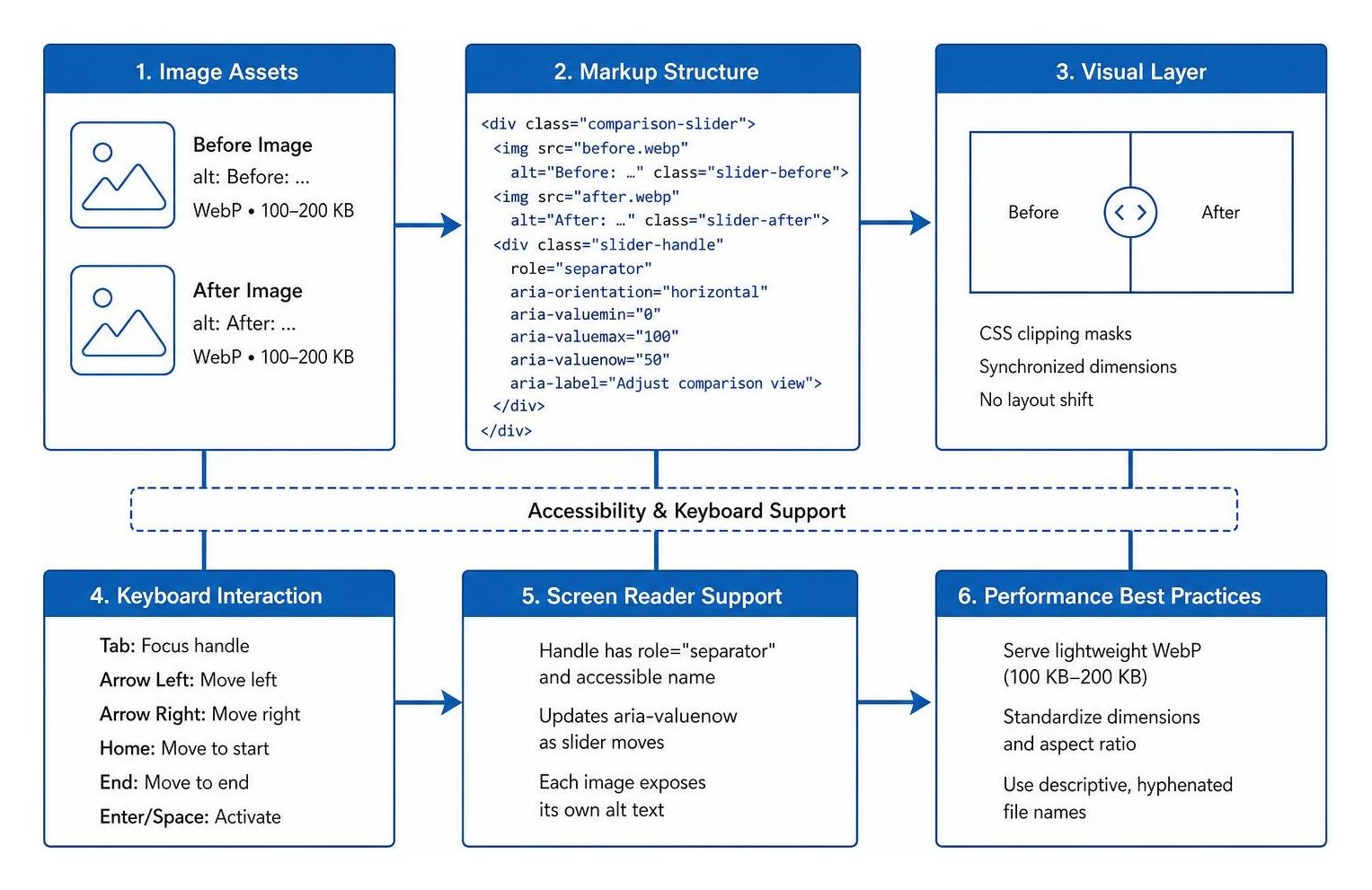
When using comparison sliders, assign distinct alt text to each underlying image file, ensure the slider interface is fully keyboard-accessible, and periodically audit media elements for missing descriptions.
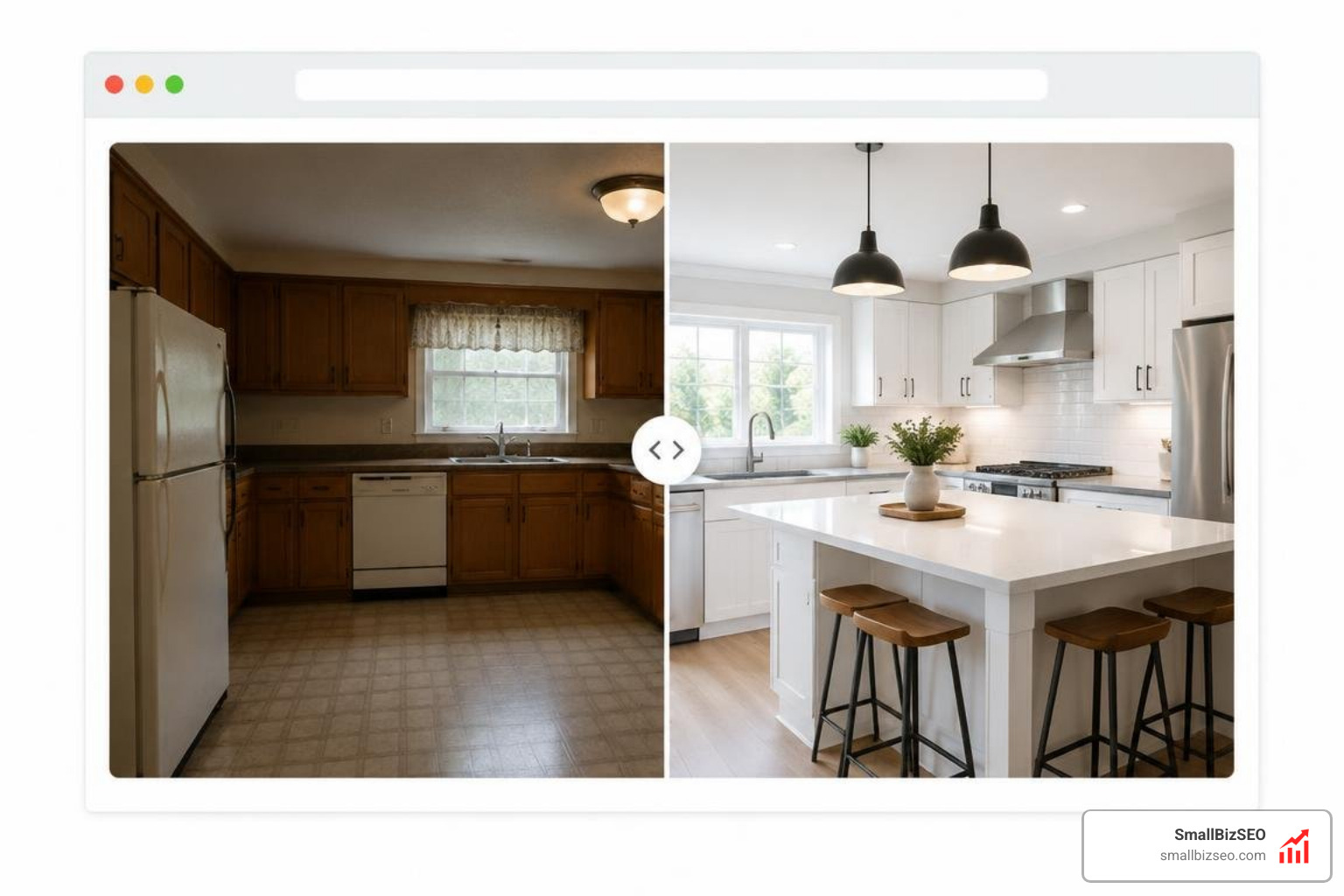
Displaying side-by-side or sliding comparisons creates an engaging user experience, but interactive widgets introduce technical considerations for accessibility and page performance:
- Use Modern Image Formats: Serve lightweight WebP images compressed between 100 KB and 200 KB to preserve Core Web Vitals and load speeds.
- Standardize Dimensions: Keep both before and after images at identical pixel dimensions and aspect ratios to prevent cumulative layout shifts.
- Implement Descriptive File Names: Use hyphenated, lowercase file names matching the alt description before uploading (e.g.,
kitchen-remodel-quartz-island-after.webp).
How Should You Handle Alt Text in Comparison Sliders and Image Galleries?
Provide separate alt text for each individual image within a slider or gallery, and apply clear functional labels to any interactive buttons or comparison handles.
Modern comparison tools—such as the PageFly image comparison element or Duda comparison widgets—typically render two distinct alt attribute.
When an image acts as a clickable navigation link leading to a case study, write functional alt text that explains the destination (e.g., "View full case study for master bathroom renovation") rather than solely describing visual elements.
How Can You Test and Audit Alt Text for Better Accessibility and Visibility?
Test your alt text using free screen readers like NVDA or Apple VoiceOver, inspect browser accessibility trees, and run automated audits to catch empty or uninformative alt attributes.
Turn on your operating system's built-in screen reader and navigate through your project gallery using only the keyboard. If the reader announces generic file names like "IMG_4021.jpg" or fails to describe the transformation, revise your image markup.
Regularly auditing your image assets ensures that new portfolio uploads maintain high standards for search engine indexing and user accessibility. To verify your entire digital presence and uncover image indexing issues across your site, request a comprehensive SEO visibility audit from SmallBizSEO to keep your portfolio driving qualified leads.
Make Your Project Transformations Work for Your Business
Every completed project represents hard work, technical skill, and tangible results. By taking a few extra moments to write concise, descriptive alt text for each before-and-after photo, you ensure that potential clients and search engines appreciate the full scope of your craftsmanship. Clean image markup improves accessibility, enhances local organic rankings, and transforms portfolio galleries into powerful lead-generation assets.