Diagnosing Bingbot Crawl Accessibility for Fresh Websites
How can you tell if Bingbot can reach your new website?
Here’s how to check whether bingbot can access a new website:
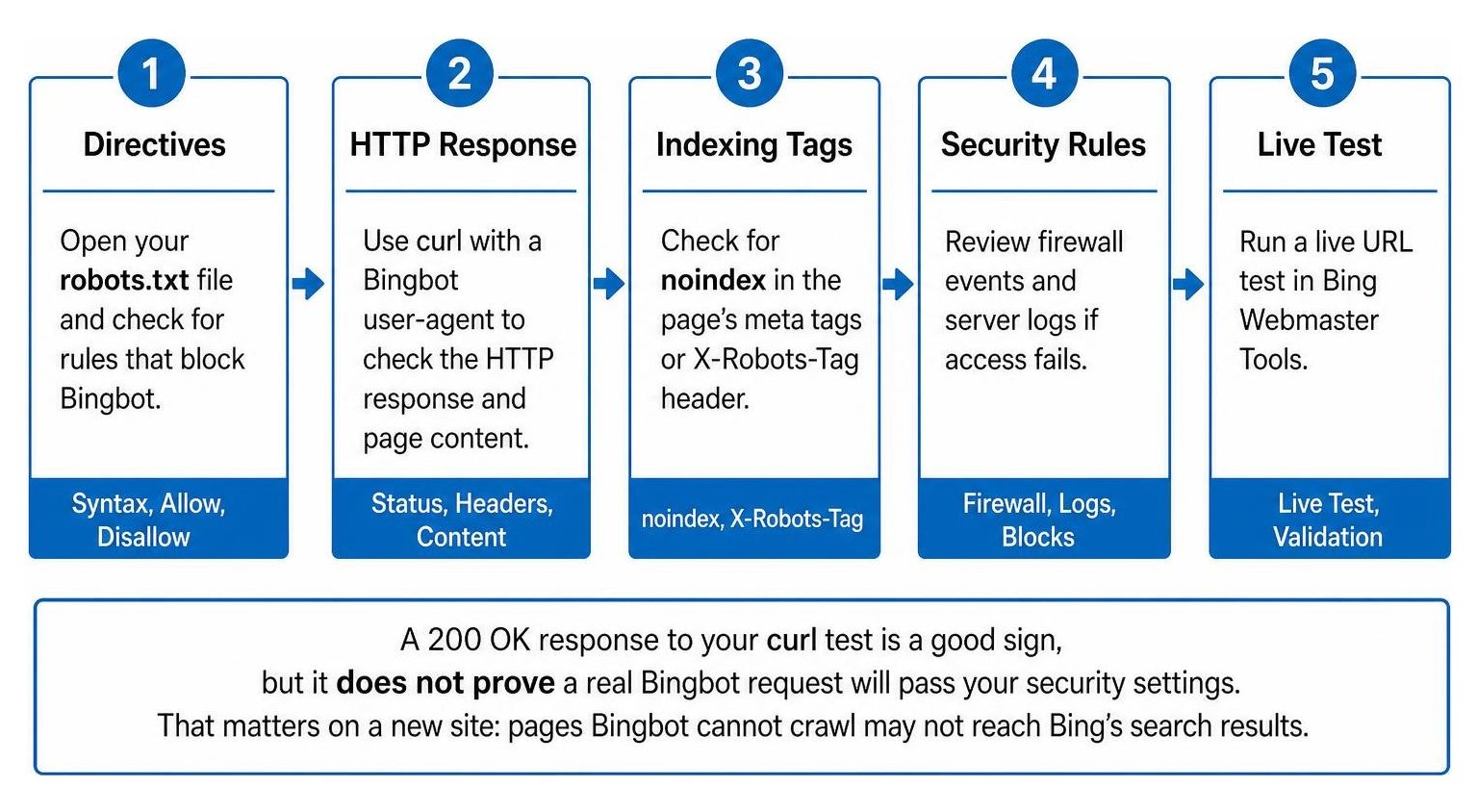
- Open your site’s
robots.txtfile and check for rules that block Bingbot. - Use
curlwith a Bingbot user-agent to check the HTTP response and page content. - Check for
noindexin the page’s meta tags orX-Robots-Tagheader. - Run a live URL test in Bing Webmaster Tools, then review firewall events and server logs if it fails.
A 200 OK response to your curl test is a good sign, but it does not prove a real Bingbot request will pass your security settings. That matters on a new site: pages Bingbot cannot crawl may not reach Bing’s search results.
I’m Clayton Johnson, founder of SmallBizSEO. My technical SEO work helps small businesses understand how to check whether bingbot can access a new website and find the rules that may keep search engines out.
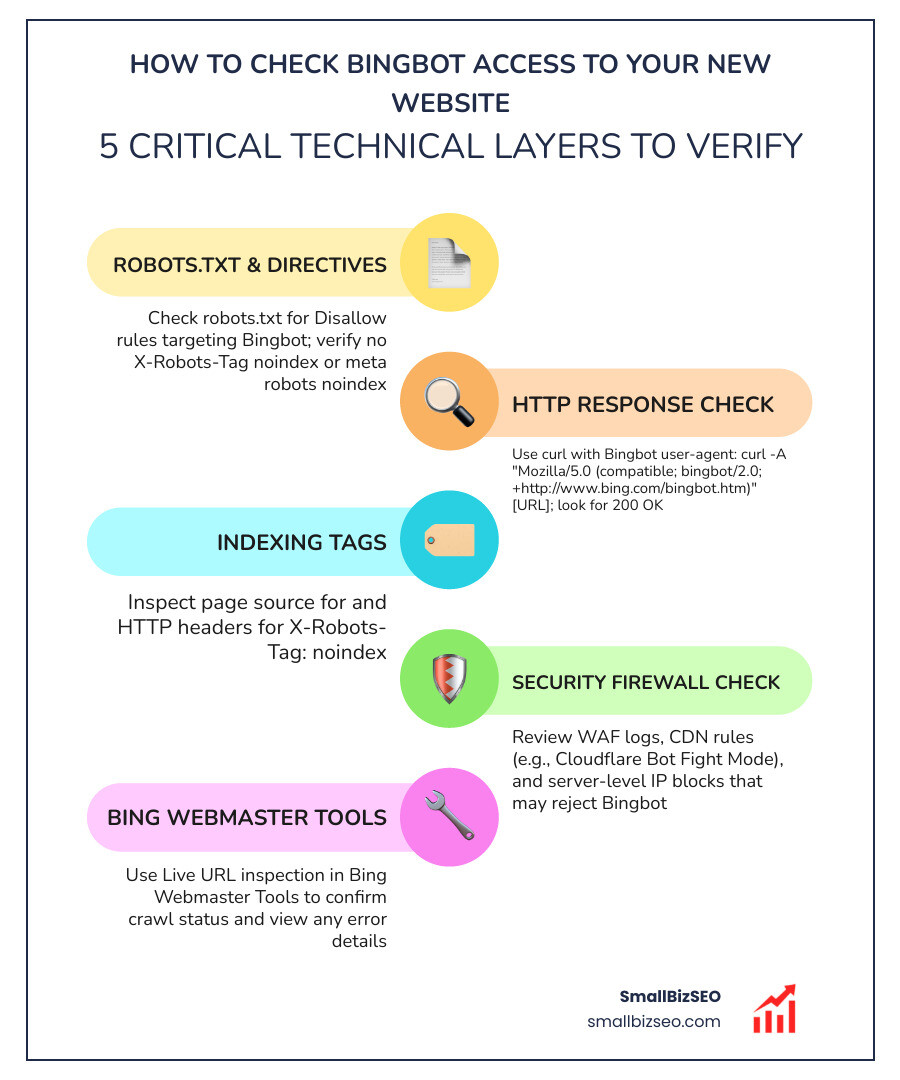
How to Check Whether Bingbot Can Access a New Website Across Critical Technical Layers
To verify that Bingbot can access your site, test each layer of your technical stack independently: your crawl directives, server responses, security firewalls, and search console endpoints. If any single layer blocks the crawler, your content will fail to index.
When you launch a new web property, minor configuration oversights frequently block automated spiders while allowing standard desktop visitors through without a hitch. This discrepancy happens because human users run JavaScript in full desktop browsers, whereas web crawlers make automated requests that trigger protective barriers.
| Crawl Validation Layer | Testing Tool / Method | Primary Focus | Common Failure Cause |
|---|---|---|---|
| Directives | Browser / Editor | Syntax, Allow, Disallow | Staging disallow rules pushed live |
| HTTP Transport | Terminal cURL / PowerShell | Status codes, headers | Accidental 403 or 503 misconfigurations |
| Meta Indexing | Page Source Inspection | noindex tokens | Development plugins left active |
| Security / WAF | Security event logs | Challenge pages, JS walls | Bot Fight Mode or browser verification |
| Live Inspection | Webmaster inspection tools | End-to-end rendering | IP filtering or domain-level crawl flags |
Bingbot respects specific rules such as the crawl-delay directive to control server load, making it distinct from crawlers like googlebot. Managing these layers methodically ensures Microsoft's crawler discovers your content quickly without overloading your host.
Step 1: How to Check Whether Bingbot Can Access a New Website via Robots.txt and Directives
To verify your crawl permissions, visit your domain's /robots.txt path directly in your browser and confirm there are no disallow rules targeting Microsoft's spider.
Your Robots Txt File acts as the initial gatekeeper for search engines. Ensure that you have not unintentionally blocked access using a blanket directive. A common mistake is allowing general bots while inadvertently adding restrictive instructions for a specific crawler User Agent.
If you need to test specific URL paths before editing live configurations, using a dedicated diagnostic tool like the Bingbot Access Tester - SEO Learning Center will show whether your syntax permits full crawling.
Beyond robots.txt, inspect your HTTP response headers for X-Robots-Tag: noindex and review your HTML source for . These tags permit crawling but tell the search engine to drop the page from its index. These directives are often left over from staging environments and prevent new pages from appearing in search results.
Step 2: How to Check Whether Bingbot Can Access a New Website Using Command-Line Tests and URL Inspection
To simulate a crawler request, run a command-line test using cURL or PowerShell with Bingbot's user-agent string to see the exact status code and content returned to the bot.

Run a terminal check using this cURL command:
Confirm that the server returns an HTTP/2 200 or HTTP/1.1 200 OK response. Compare both HEAD (-I) and GET requests, as some misconfigured origin servers send different headers depending on the HTTP method.
Once your command-line tests succeed, log in to Bing Webmaster Tools and use the URL Inspection feature. This tool runs a live Fetch And Render directly from Microsoft servers, verifying that the crawler can fetch your HTML, load your CSS and JavaScript files, and process dynamic page elements properly.
Step 3: How Can You Identify WAF Challenges, CDN Rules, and Hosting Gateways?
To determine if your firewall or web host is blocking search engines, review your security logs for challenged requests from Microsoft IP ranges and look for interstitial verification pages.
Web Application Firewalls (WAFs) like Cloudflare provide essential security, but settings such as Bot Fight Mode or Browser Integrity Check often challenge non-browser user agents. When Bingbot requests a page behind these filters, it receives a JavaScript challenge or CAPTCHA screen rather than your content, triggering an indexing failure. Understanding the relationship between your cdn and robotstxt policies ensures your security rules do not override legitimate crawler permissions.
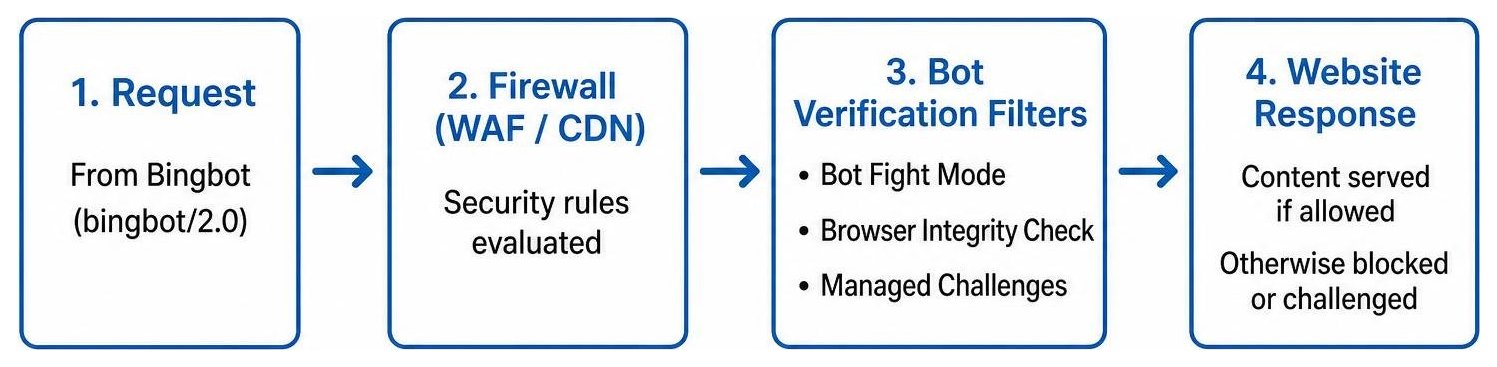
Inexpensive or free hosting platforms frequently enforce mandatory browser-validation scripts that block automated spiders entirely. To resolve firewall interference:
- Create explicit firewall bypass rules that skip managed challenges for verified search engine bots.
- Disable Browser Integrity Check for endpoints intended for rapid indexation.
- Execute a single cache purge across your CDN edge network after modifying security rules to verify that clean pages are served immediately.
How Can You Troubleshoot Common Blocking Issues and Confirm Crawl Recovery?
To resolve persistent crawl failures, match the error codes shown in your webmaster dashboard against your origin server access logs and adjust your server-side firewall rules accordingly.
When diagnosing complex crawling issues, review your server access logs to confirm whether connection attempts reach your origin host or get dropped at the network edge.
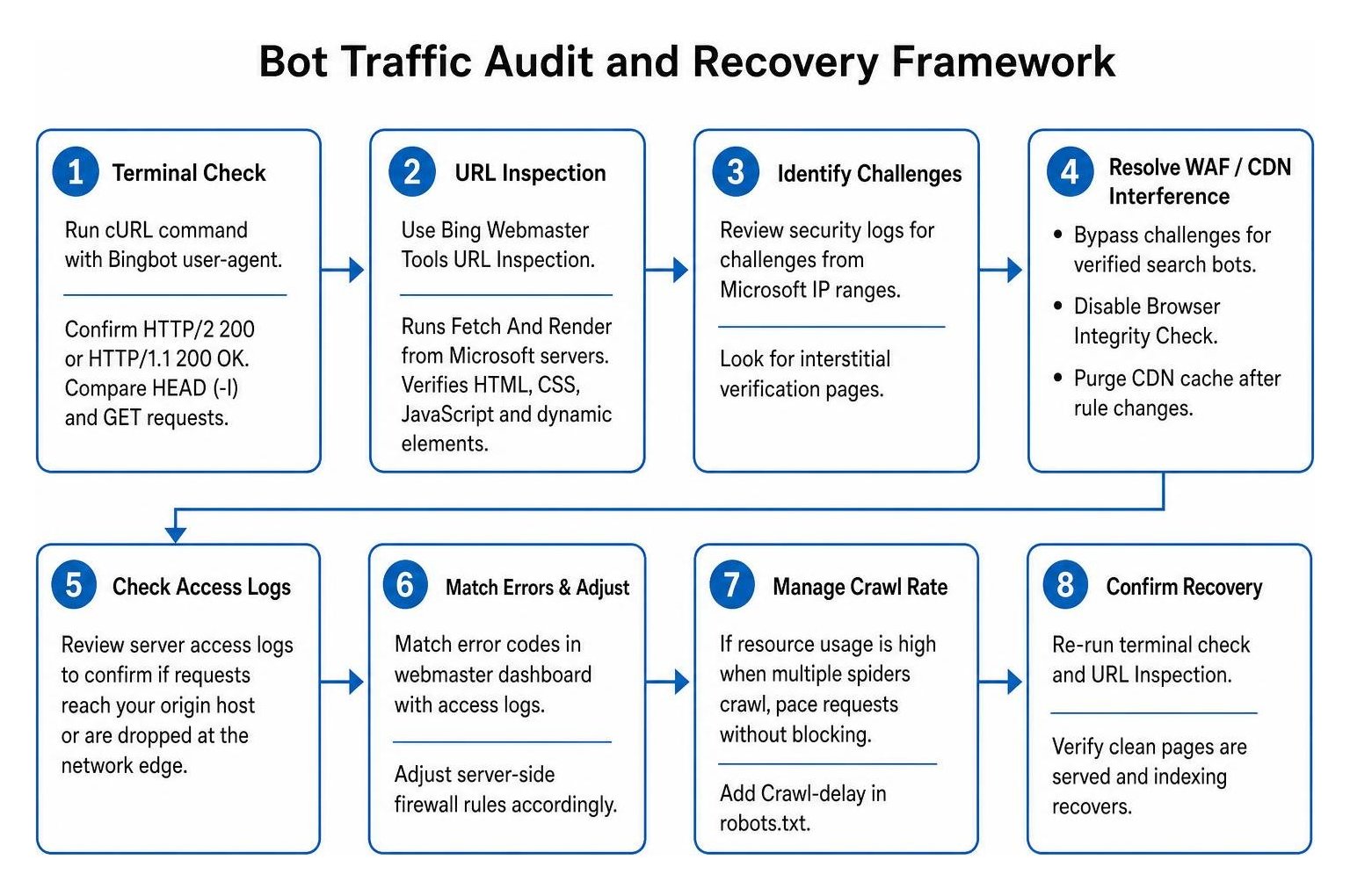
If your website experiences high resource usage when multiple spiders crawl simultaneously, you can manage the request rate without blocking the bot. Add a Crawl-delay directive to your robots.txt file to pace the requests:
This directive requests that Bingbot pause for five seconds between page fetches, protecting your server capacity while maintaining full crawl coverage.
How Do You Interpret HTTP Status Codes and Bing Webmaster Tools Crawl Alerts?
To interpret crawl alerts accurately, distinguish between client-side permission errors, server load constraints, and redirect loops reported in your webmaster diagnostics.
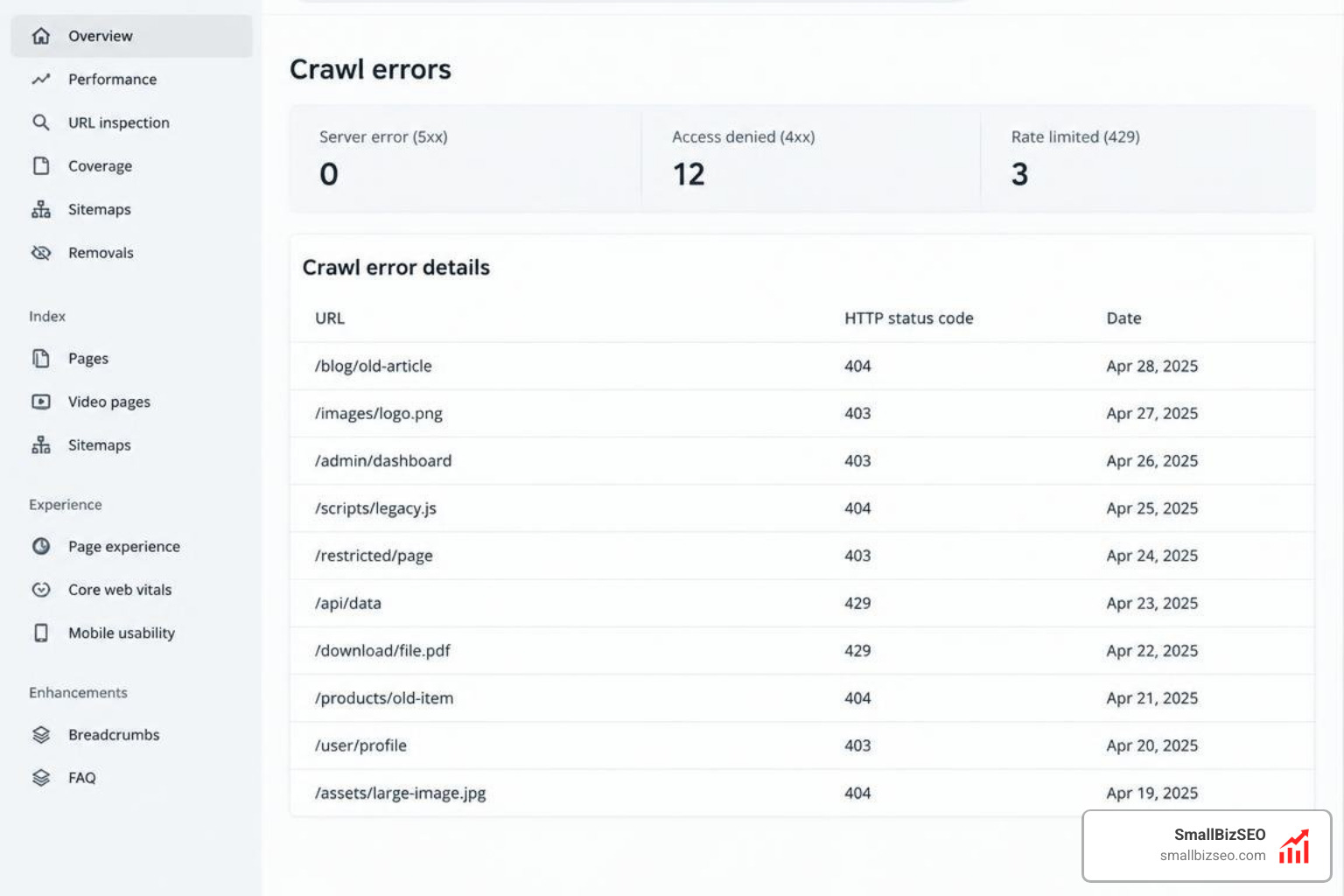
When reviewing your site crawl health, watch for these common status codes:
- HTTP 200 (Success): The request succeeded and the crawler fetched the page cleanly.
- HTTP 403 (Forbidden): The server actively refused the connection, usually due to IP filtering, security rules, or directory permission constraints.
- HTTP 429 (Too Many Requests): The origin server throttled the spider due to aggressive rate-limiting rules.
- HTTP 503 (Service Unavailable): The server was temporarily unable to handle the crawl volume, often caused by CPU bottlenecks or maintenance mode.
- HTTP 400–499 Alerts: In Webmaster Tools, these alerts indicate that while human visitors might view the site normally, the automated scanner encountered an unhandled challenge or permission block.
Resolving continuous redirect chains (such as repeated 301 or 302 loops) is critical, as search crawlers will stop following links after several consecutive hops.
How Can You Verify Genuine Bingbot Traffic Versus Spoofed Scrapers?
To confirm that a bot visiting your server is genuinely from Microsoft, run a reverse DNS lookup on the visiting IP address or verify it using official Microsoft validation tools.
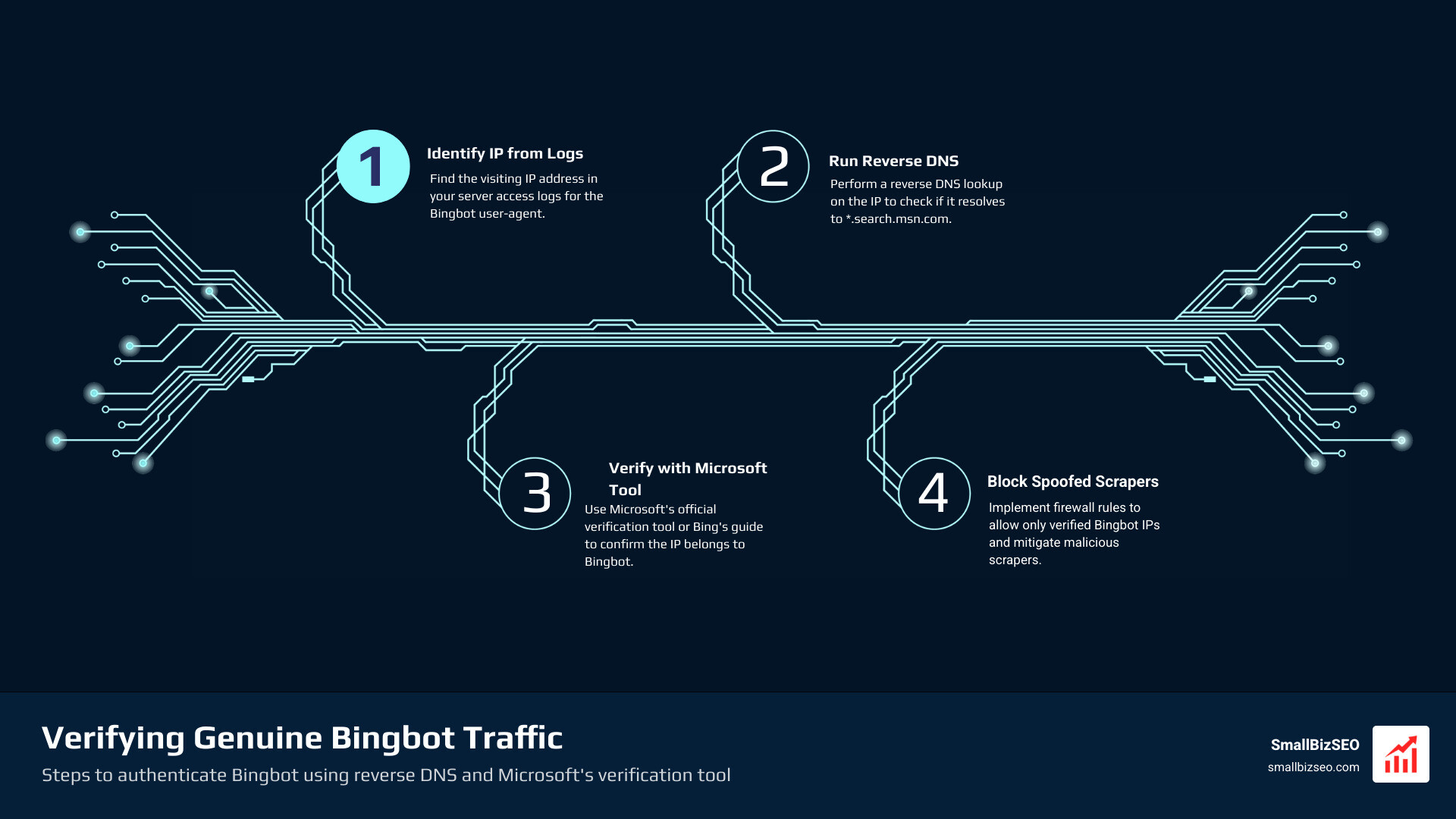
Malicious scrapers frequently disguise their automated software by using Bingbot's user-agent string. Allowing unverified user agents through your firewall without IP validation can expose your server to scrapers. Microsoft outlines the official verification process in their guide on How to Verify that Bingbot is Bingbot.
Follow these steps to authenticate any connection:
- Identify the visiting IP address from your server access logs.
- Run a reverse DNS query (
hostornslookup) in your terminal. - Confirm that the resulting hostname ends in
.search.msn.com. - Perform a forward DNS lookup on that hostname to verify it points back to the original IP address.
Alternatively, input the address into the Microsoft Verify Bingbot tool in your webmaster account to confirm legitimacy before adding network-level CIDR rules.
How Can You Resolve Domain-Level Crawl Blocks and Request Re-Indexing?
To restore indexing after removing an accidental block, submit your key URLs via the IndexNow protocol, upload an updated XML sitemap, and request a manual review if domain-level flags persist.
Occasionally, an accidental block via .htaccess or firewall rules causes your webmaster dashboard to display "Blocked – Cannot Appear on Bing," even when a live URL inspection returns a 200 OK. This occurs when an automated security flag remains attached to the domain profile after the technical issue has been resolved.
To restore indexing:
- Submit your updated URLs through the IndexNow protocol to trigger immediate re-crawling.
- Resubmit your XML sitemap inside Webmaster Tools to refresh the crawl queue.
- If your pages remain marked as blocked despite clean live inspections, submit a technical support request through your webmaster portal explaining that the accidental restriction has been fixed.
Our team at SmallBizSEO utilizes a data-driven "Velocity" framework to help businesses diagnose indexing barriers and achieve sustainable organic growth. For end-to-end technical optimization, explore our specialized bingbot solutions to maximize your search visibility.
Ensuring Seamless Search Engine Access for Long-Term Growth
Maintaining open access for search crawlers is an ongoing part of technical site maintenance. Every time you update a firewall configuration, migrate hosting platforms, or update your CDN edge rules, run through the basic verification steps: inspect your robots directives, run a terminal request simulation, check for unexpected security challenges, and monitor your live webmaster reports. Catching access errors early ensures your new content indexes quickly and continues driving organic search traffic.