Are Your Canonical Tags Broken: Testing URL Annotations Across CMS Templates

How Can You Check Canonical Tags After a CMS Template Change?
Here is how to test canonical annotations after a CMS template change: save a pre-release crawl of the affected pages, then crawl the same URLs after release. Compare each page's declared canonical with its expected destination. Check the raw HTML for missing or duplicate tags, and confirm that each target uses the right domain and returns a working page.
A shared template error can change the tags on many pages at once, even when those pages look normal.
I'm Clayton Johnson, founder of SmallBizSEO. My background in SEO and digital growth strategy shapes how I explain how to test canonical annotations after a CMS template change and protect small-business search visibility.
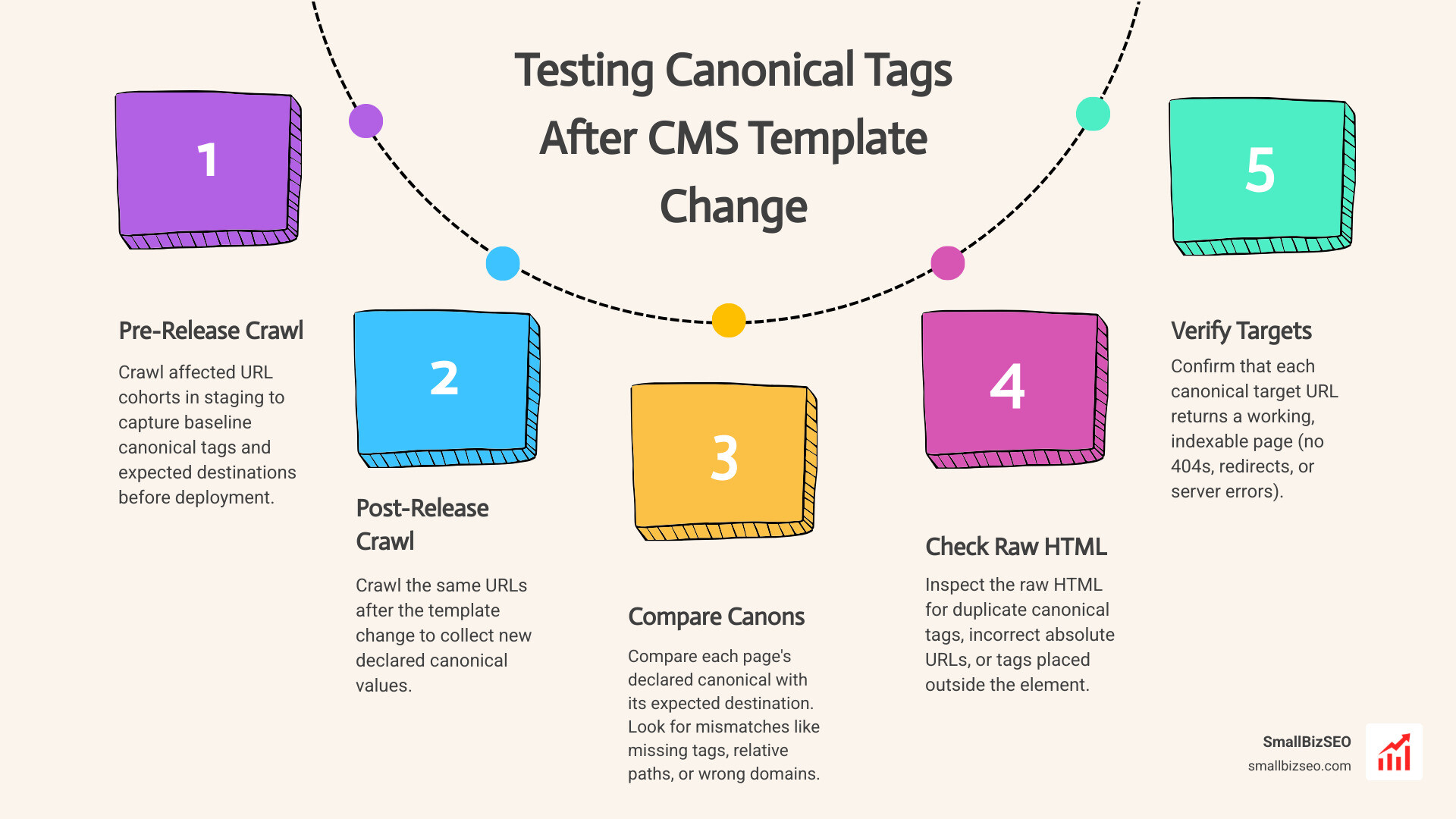
How Do You Test Canonical Annotations After a CMS Template Change?
To test canonical annotations after a CMS template change, crawl representative URL cohorts before and after the release, then compare each page's declared canonical against its expected destination.
Modern content management systems build pages from shared component layouts, themes, and plugins rather than isolated, static files. When developers edit a layout or alter SEO plugin logic, the change applies globally across every URL assigned to that template. Running a detailed SEO analysis across distinct page cohorts reveals whether the template correctly populates elements in the HTML . According to the Google Search Central canonicalization guide, canonical annotations must point to absolute URLs, and search engines treat these link annotations as strong hints for indexing and deduplication.
How Do You Capture Pre-Release Baselines in Staging?
To capture an accurate baseline, crawl your staging or pre-production environment using a fixed list of representative URLs before any code deploys.
Isolating template errors requires creating a "golden set" of 5 to 20 URLs per template type. This golden set should include top-performing commercial pages, standard articles, paginated category pages, and deep URLs with special characters.
When testing in staging environments, watch out for environment parity mismatches. Staging sites often run under different hostnames or have testing settings that output staging URLs inside template variables. Ensure your CMS template settings dynamically map production host variables so that absolute canonical paths reflect your live domain rather than a staging subdomain.
How Do You Compare Post-Release Crawls and Automate Exports?
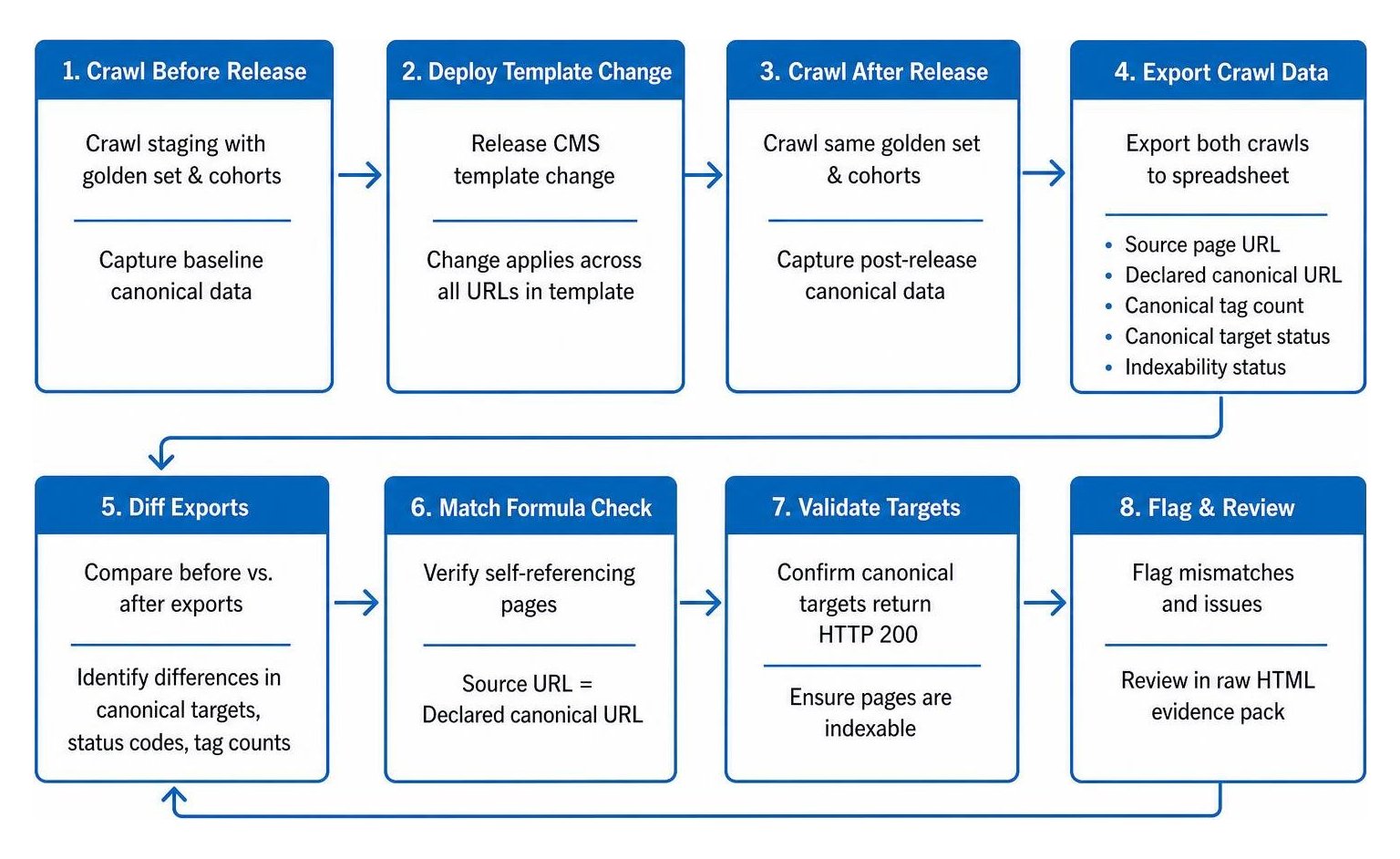
To detect regressions, export crawl data from before and after the template deployment and run comparison formulas to flag any discrepancies in canonical targets, status codes, or tag counts.
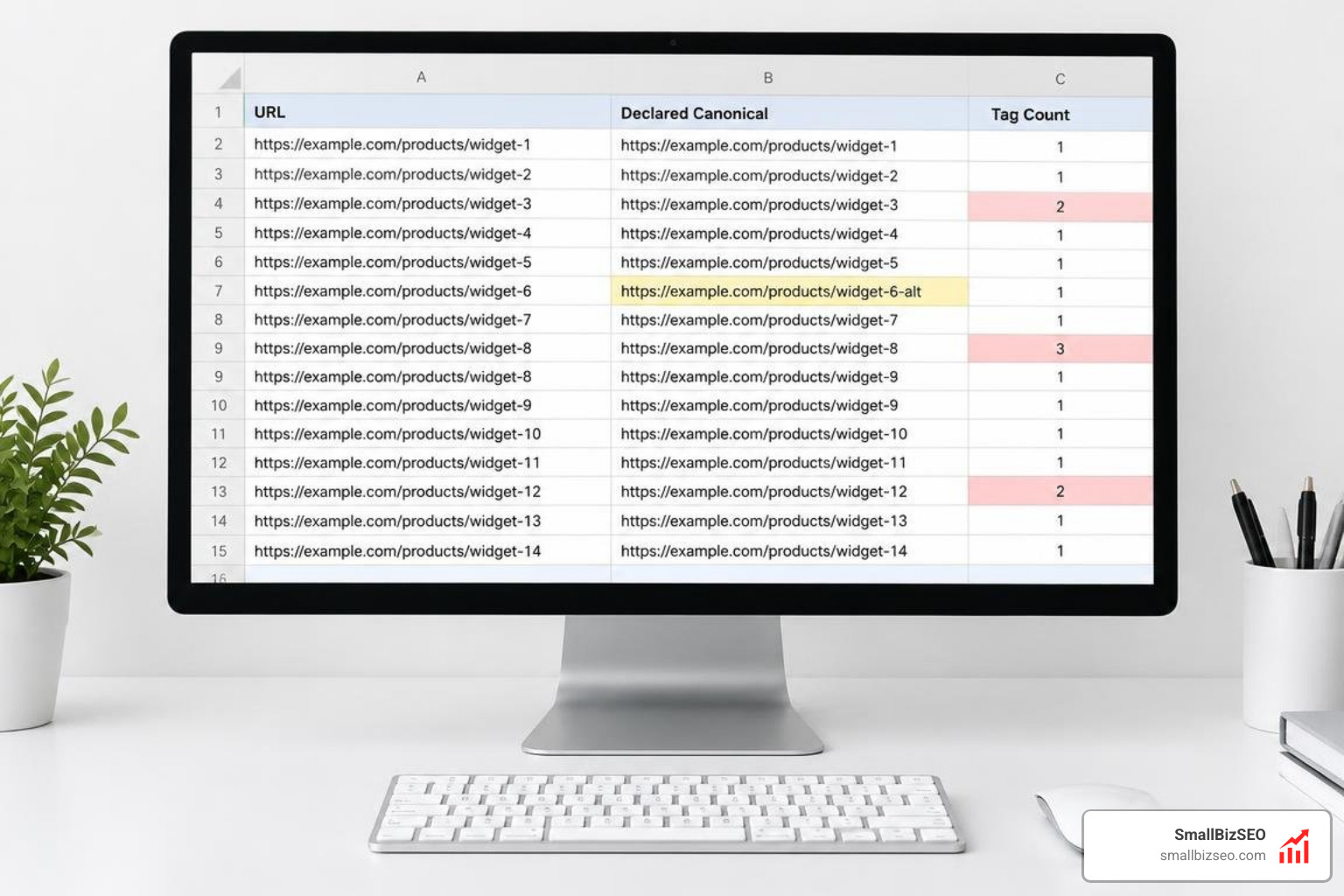
Using a desktop crawler like Screaming Frog or Sitebulb, run an identical crawl across your golden set and primary URL cohorts immediately after deployment. Export the results to a spreadsheet containing the following data points:
- Source page URL
- Declared canonical URL
- Canonical tag count per page
- Canonical target HTTP status code
- Indexability status
Use a simple match formula to verify whether the source URL matches the declared canonical target on self-referencing pages. Check that every canonical target returns an HTTP 200 status code and is eligible for search indexing. Save raw HTML snapshots of your test URLs alongside the export data to maintain a verifiable evidence pack for your development team.
What Should You Check in the First 30 Minutes After Release?
In the first 30 minutes following a CMS release, prioritize critical eligibility gates across high-traffic page templates to identify and contain widespread template regressions.
Focus your immediate triage on core business templates, such as product detail pages, lead generation landing pages, and primary category hubs. Verify these four technical checks:
- Tag Presence and Placement: Confirm that every tested page outputs exactly one canonical link element inside the valid HTML
. - Absolute Address Validation: Verify that paths include the full HTTPS protocol and your primary domain name.
- Response Codes: Ensure no canonical tag points to a 301 redirect or broken destination.
- Blast Radius Assessment: If one category page shows an error, check whether the entire directory cohort shares the exact same defect.
Log all anomalies with exact timestamps and raw HTML source captures before initiating hotfixes.
How Do You Diagnose and Resolve Canonical Regressions?
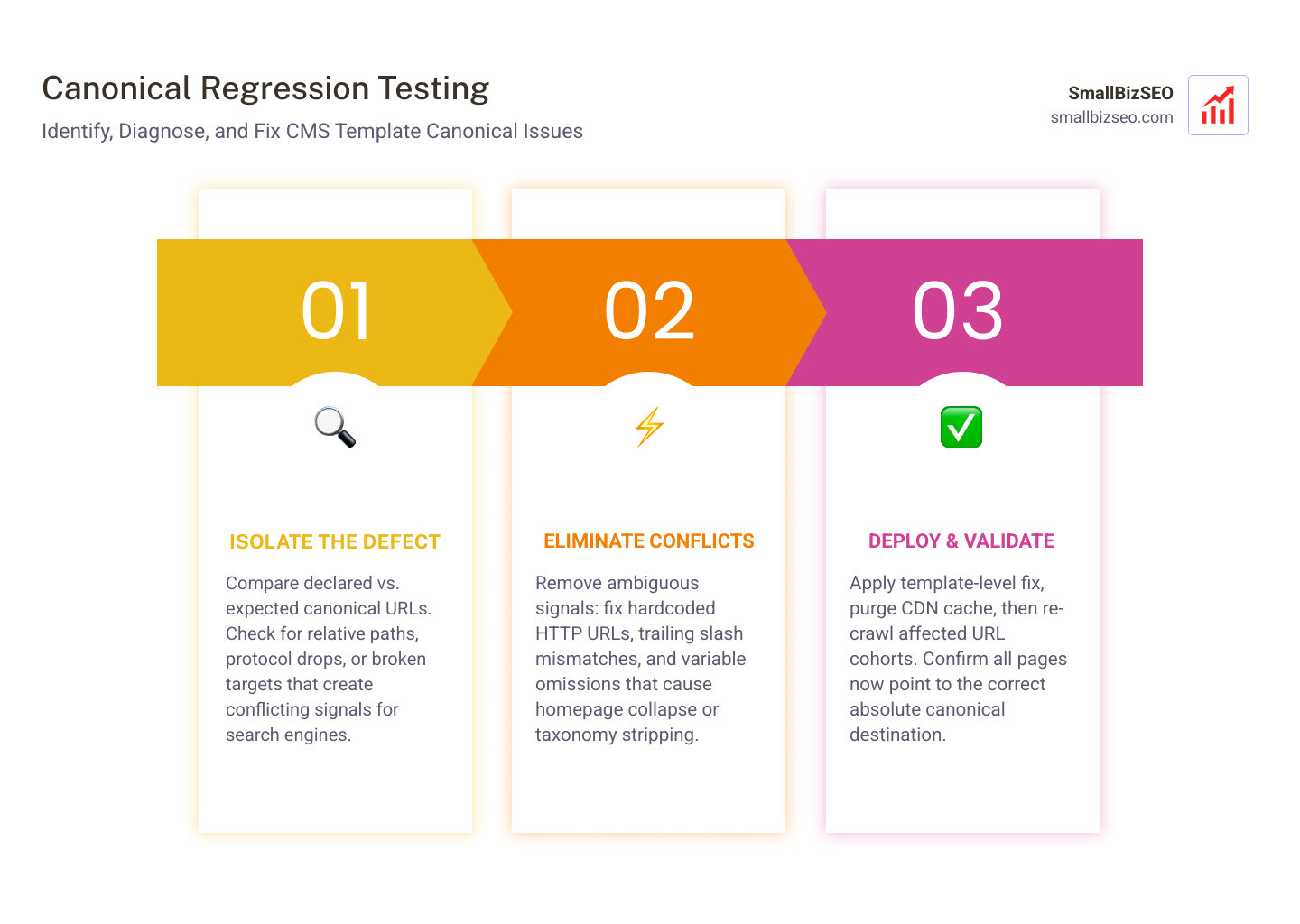
To diagnose and resolve canonical regressions, isolate where the declared tag differs from your intended destination, eliminate conflicting signals, and deploy a template-level fix.
When canonical tags break, search engines encounter conflicting signals about which page to index. Our practical guide to resolving google canonical mismatches covers how search engines evaluate competing signals like internal links, XML sitemaps, and redirects when canonical tags become ambiguous.
Which Common Template Regressions Cause Canonical Mismatches?
CMS template updates typically introduce canonical regressions through variable omissions, hardcoded environment settings, or path-handling errors.
| Regression Pattern | Root Cause in Template Logic | Search Engine Impact |
|---|---|---|
| Homepage Collapse | Dynamic URL variable fails or returns null, falling back to root domain | Entire section signals search engines to consolidate equity to homepage |
| Taxonomy Stripping | Collection or subfolder variable omitted in template string | Category URLs canonicalize to non-existent or root-level slugs |
| Relative Path Output | Absolute URL rewriting disabled in template settings | Search engines misinterpret paths, risking staging or duplicate indexing |
| Trailing Slash Inconsistency | Template forces non-slash paths while site routes to trailing slashes | Creates canonical redirect loops or duplicate variant indexing |
| Protocol / Host Drops | Hardcoded HTTP or non-WWW strings inside header partials | Downgrades security signals and splits link equity |
| Broken Target Linking | Template appends draft slugs or parameter strings | Canonical points to a broken page or 404 response |
How Can You Check Server Headers, Rendered DOM, and Search Console Signals?
To catch hidden canonical issues, inspect server response headers, compare raw HTML against JavaScript-rendered DOM output, and monitor Search Console indexation reports.
Some CMS platforms and reverse proxies inject canonical tags through HTTP Link headers for documents and web pages. If an HTTP response header serves one canonical URL while your on-page HTML declares a different one, search engines will disregard the conflicting signals.
Additionally, client-side JavaScript can modify, duplicate, or delete canonical link elements during DOM hydration. Always compare the raw view-source HTML against the fully rendered browser DOM.
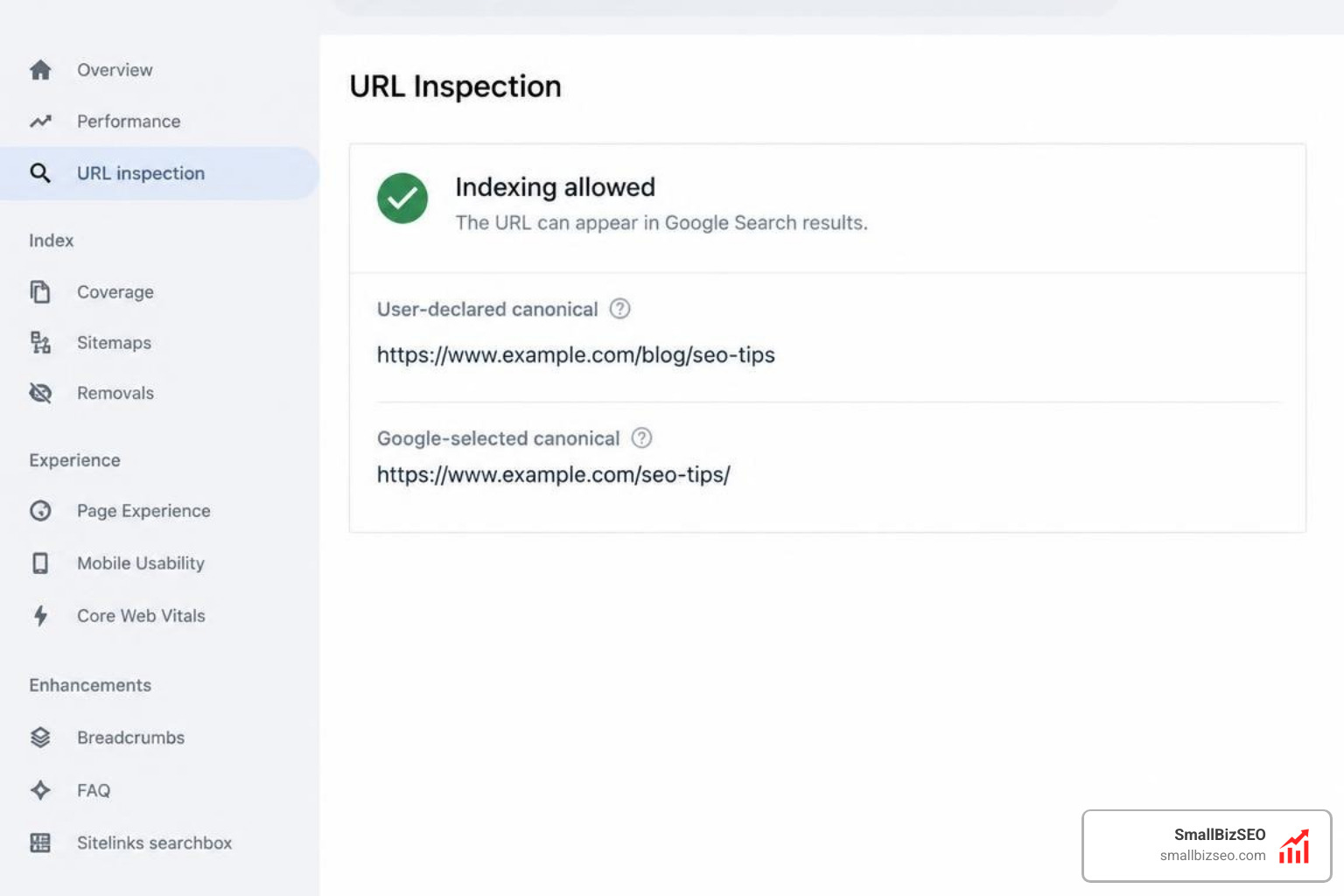
As search engine crawlers process your updated templates, consult the Google Search Central troubleshooting documentation and inspect sample URLs in Google Search Console's URL Inspection tool. The indexed report displays both the "User-declared canonical" and the "Google-selected canonical." Search engines may take up to two weeks to re-evaluate duplicate page clusters after template fixes go live.
When Should You Roll Back or Apply a Hotfix?
Roll back a deployment immediately if an eligibility gate breaks across high-value templates; apply a targeted hotfix only when the blast radius is small and the template fix is straightforward.
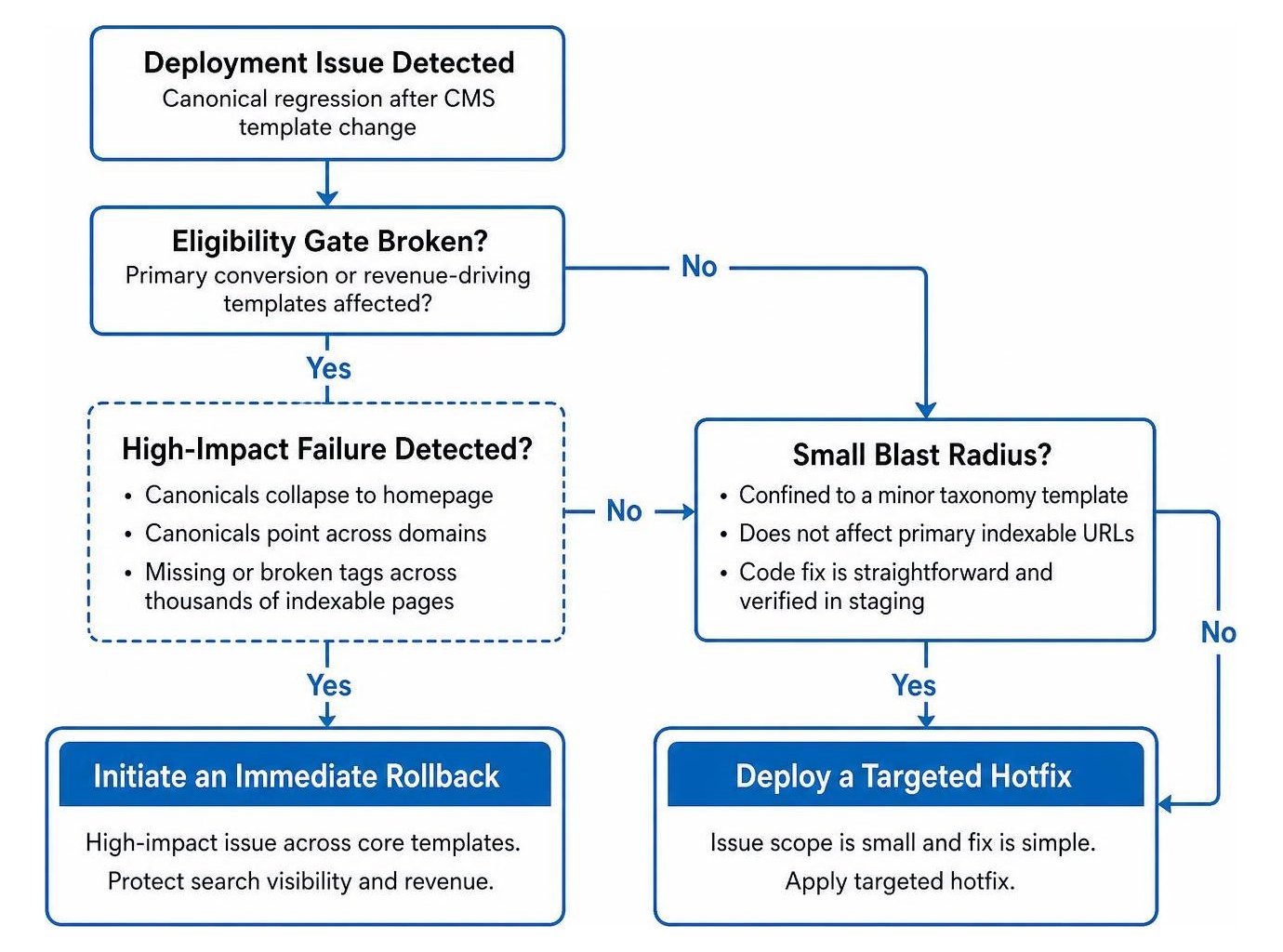
Use this decision criteria during post-deployment triage:
- Initiate an Immediate Rollback if your primary conversion or revenue-driving templates collapse their canonicals to the homepage, point across domains, or inject missing/broken tags across thousands of indexable pages.
- Deploy a Targeted Hotfix if the issue is confined to a minor taxonomy template, does not affect primary indexable URLs, and the code fix is verified in staging.
Whenever deploying template changes or hotfixes, purge edge and CDN caches synchronously. Stale HTML cached at the server edge can continue serving broken canonical annotations to search engine bots long after your CMS template is repaired.
Protecting Search Visibility Across Every Template Release
Validating canonical tags through automated pre-and-post crawl comparisons, raw HTML inspection, and edge cache clearing ensures that CMS updates never silently erode your organic traffic. If you need help safeguarding your site architecture, our team at SmallBizSEO provides comprehensive canonical tag optimization services to keep your technical foundation secure.