Can Your Site Pass a Keyboard-Only Accessibility Test?
How do you check website keyboard navigation manually?
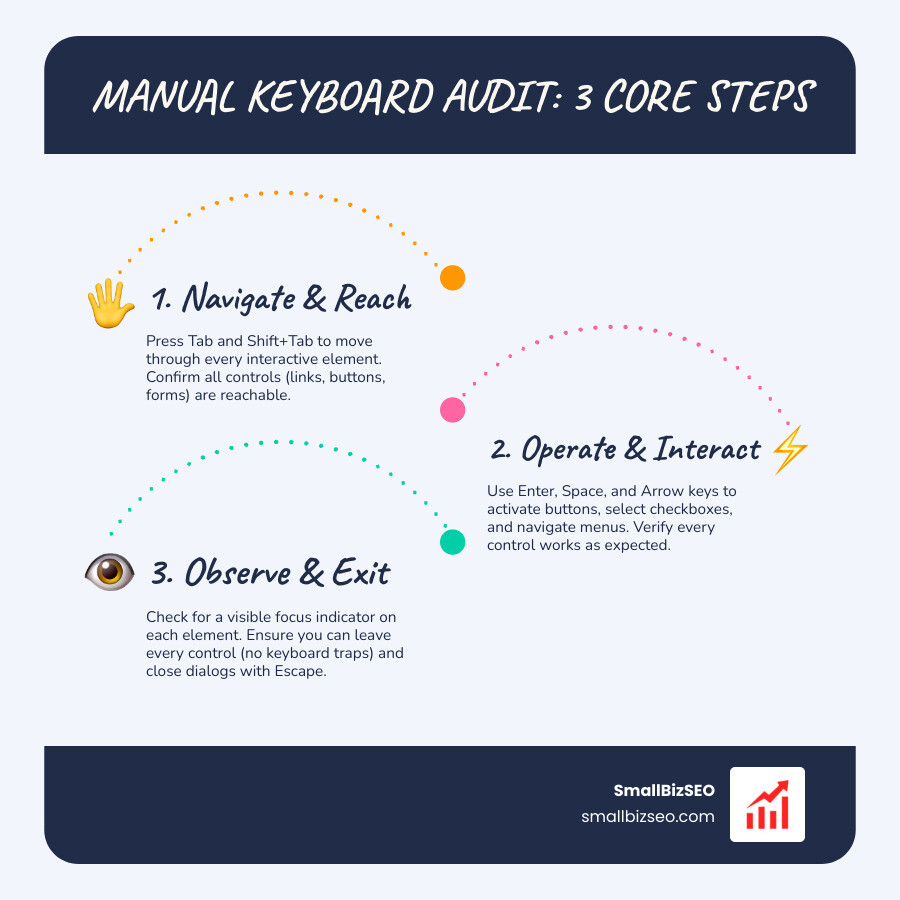
When checking website keyboard navigation manually, put your mouse aside. Press Tab and Shift+Tab to move through the page. Use Enter, Space, arrow keys, and Escape to test links, buttons, forms, menus, and dialogs. Every control should be reachable, work as expected, and show where keyboard focus is. Watch for skipped controls, confusing jumps, and places you cannot leave.
This matters because some visitors cannot use a mouse. Keyboard access helps them use your site and is a core part of web accessibility standards.
I'm Clayton Johnson, founder of SmallBizSEO. My work on website structure and technical SEO informs this practical guide to checking website keyboard navigation manually.
Introduction: How Does Keyboard Accessibility Help Website Users and Support Compliance?
Keyboard accessibility allows every visitor to navigate, browse, and interact with a website using only a keyboard or an alternative input device. It is essential for millions of people with motor disabilities, tremors, or limb differences, as well as blind users navigating with screen readers. It also helps power users who simply prefer navigating pages without taking their hands off the keys.
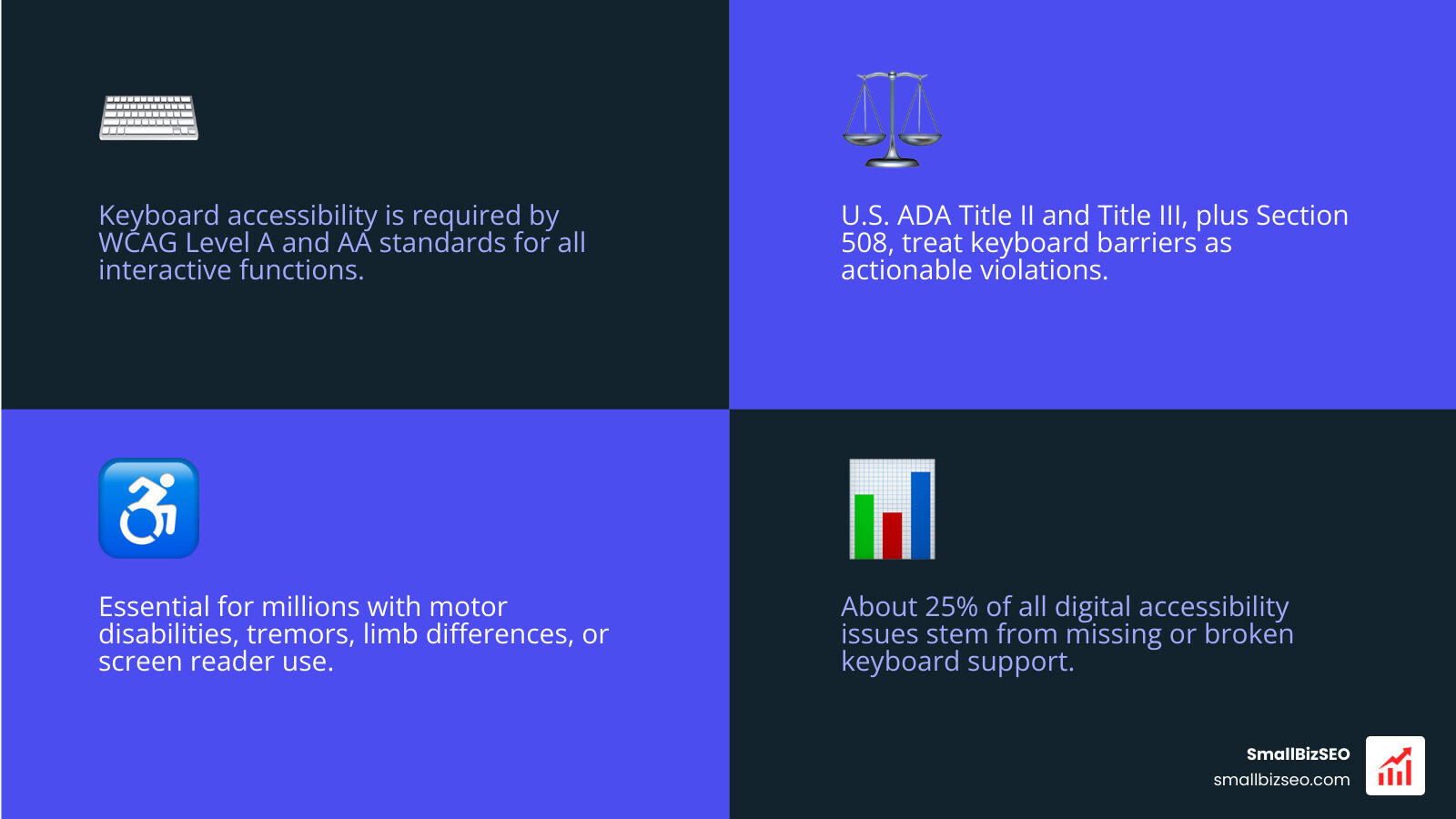
Ensuring robust keyboard access keeps your site aligned with legal and industry standards:
- WCAG Level A and AA Standards: The foundational WCAG guidelines mandate that every interactive function must be operable via keyboard (Success Criterion 2.1.1) and free of keyboard traps (Success Criterion 2.1.2).
- Legal Compliance: In the United States, Title II and Title III of the Americans with Disabilities Act (ADA), as well as Section 508, require public and commercial web properties to provide equal access. Courts routinely treat keyboard barriers as actionable accessibility violations.
- Enhanced User Experience: It is estimated that about 25% of all digital accessibility issues stem from missing keyboard support. Removing these friction points improves overall usability and helps connect user experience and SEO by keeping visitors engaged.
Step-by-Step Guide: How Can You Check Website Keyboard Navigation Manually?
To check website keyboard navigation manually, disconnect your physical mouse, move through every interactive element using standard keys, and verify that all controls receive focus in an intuitive sequence.
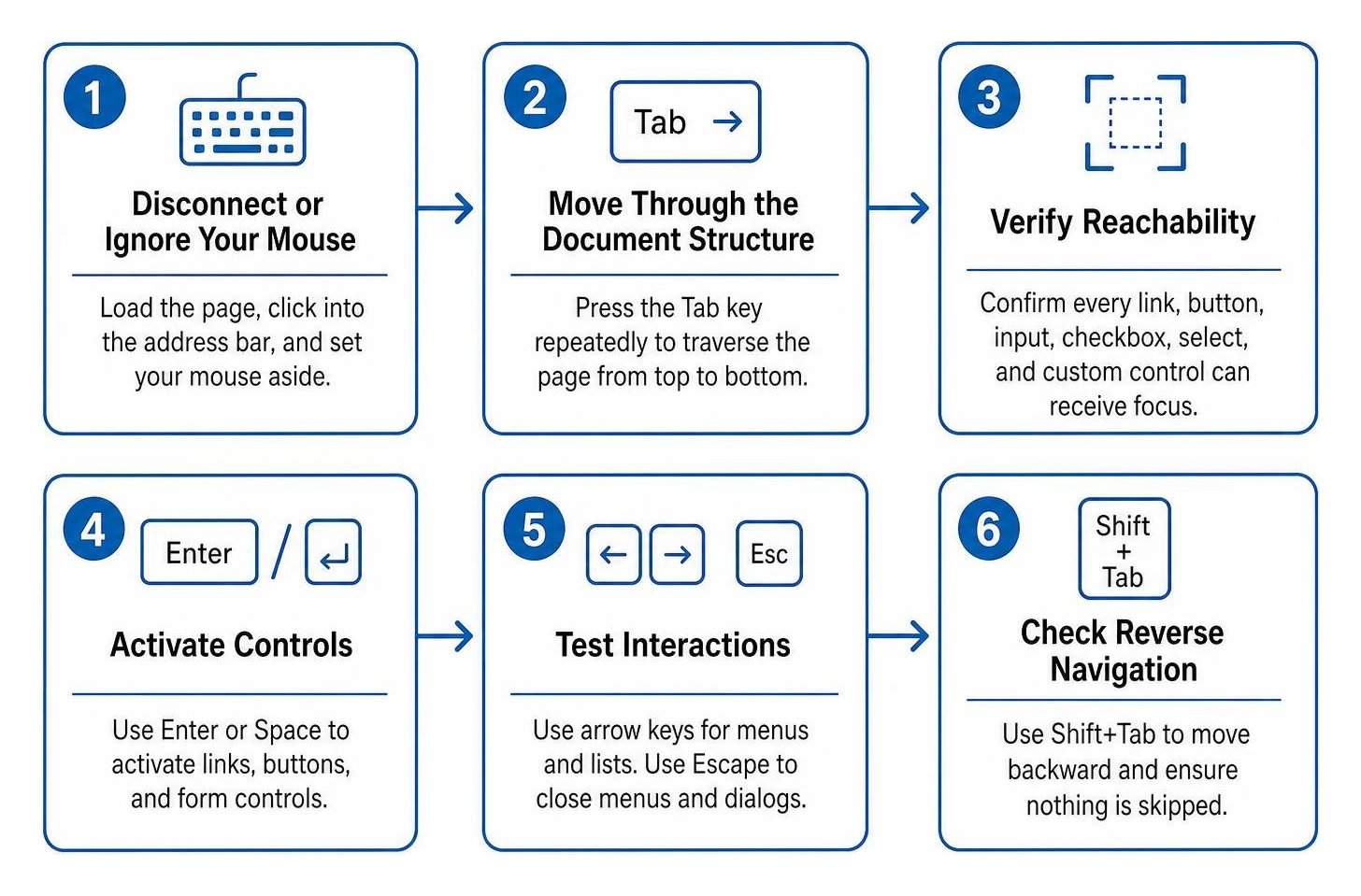
Follow this core testing protocol:
- Disconnect or Ignore Your Mouse: Load the target page, click into the browser address bar, and set your mouse aside completely.
- Move Through the Document Structure: Press the Tab key repeatedly to traverse the Document Object Model (DOM) from the top header down to the footer.
- Verify Reachability: Confirm that every link, button, text input, checkbox, select dropdown, and custom control can receive focus.
- Test Operability: Press key commands to trigger every control, submit forms, open menus, and close popups.
- Reverse Direction: Use Shift+Tab to ensure you can navigate backward through the interface without getting stuck.
Which Core Keystrokes Should You Use When Checking Website Keyboard Navigation Manually?
When checking website keyboard navigation manually, you must test with the full set of functional keystrokes rather than relying solely on the Tab key.
| Key / Combination | Expected Action in Browser | Common Elements Tested |
|---|---|---|
| Tab | Moves focus forward to the next interactive control | Links, buttons, form fields, widgets |
| Shift + Tab | Moves focus backward to the previous interactive control | Links, buttons, form fields, widgets |
| Enter (Return) | Activates links, submits forms, presses buttons | Text links, primary action buttons |
| Spacebar | Toggles checkboxes, presses buttons, expands menus | Checkboxes, custom buttons, switches |
| Arrow Keys | Moves selection within composite controls | Radio groups, tabs, select menus, sliders |
| Escape (Esc) | Dismisses open overlays, dropdowns, and dialogs | Modals, tooltips, hamburger menus |
Following standard keystrokes is a core part of manual accessibility testing, ensuring that visitors do not experience unexpected behavior while interacting with your layout.
How Do You Verify Focus Indicators and Tab Order When Checking a Website's Keyboard Navigation Manually?
A visible focus indicator is the visual cue (such as an outline, ring, or border color change) that highlights whichever element currently holds keyboard focus. Without it, keyboard users are left guessing where they are on the page.
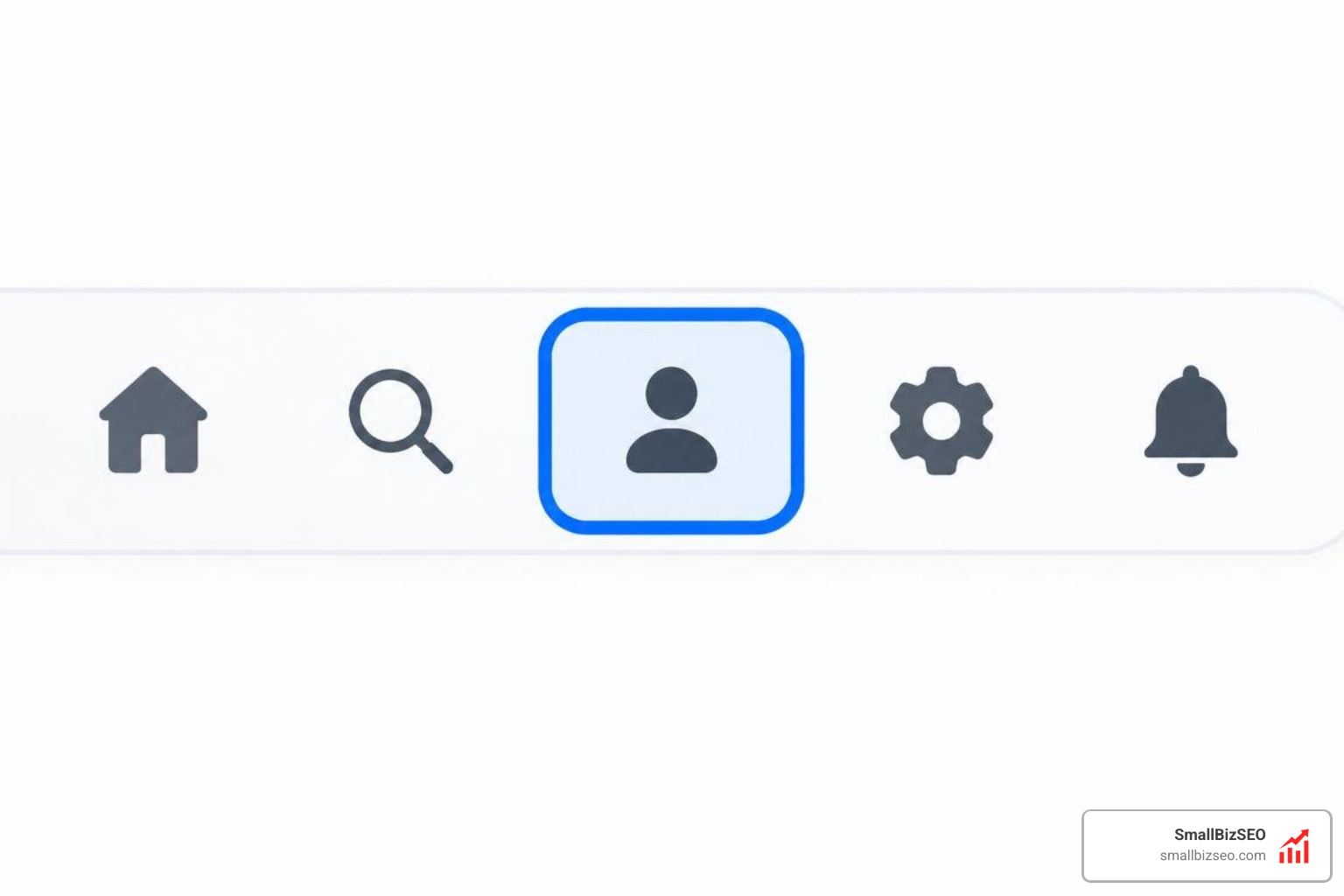
Here is how to validate focus visibility and reading order:
- Check Indicator Contrast: WCAG requires focus indicators to have a minimum contrast ratio of 3:1 against adjacent background colors.
- Inspect CSS Rules: Ensure your stylesheet does not use
outline: noneoroutline: 0without providing a high-contrast alternative styled with the modern:focus-visiblepseudo-class. - Confirm Natural Reading Flow: Focus should move in a predictable top-to-bottom, left-to-right order that matches visual content.
- Eliminate Positive Tabindex: Never use positive
tabindexvalues (liketabindex="1"). They disrupt natural DOM order and cause focus to jump erratically across the viewport. Usetabindex="0"to make custom elements focusable ortabindex="-1"for programmatic focus.
Clear site hierarchy is also a cornerstone of accessibility and SEO basics, because search engine crawlers and keyboard users both rely on logical structural flow.
How Do You Test Modals, Dialogs, and Complex Interactive Widgets?
Modals and complex dynamic components require specialized focus management to prevent users from interacting with background content while an overlay is active. Detailed guides for manual testing for accessibility emphasize three strict rules for modal dialogs:
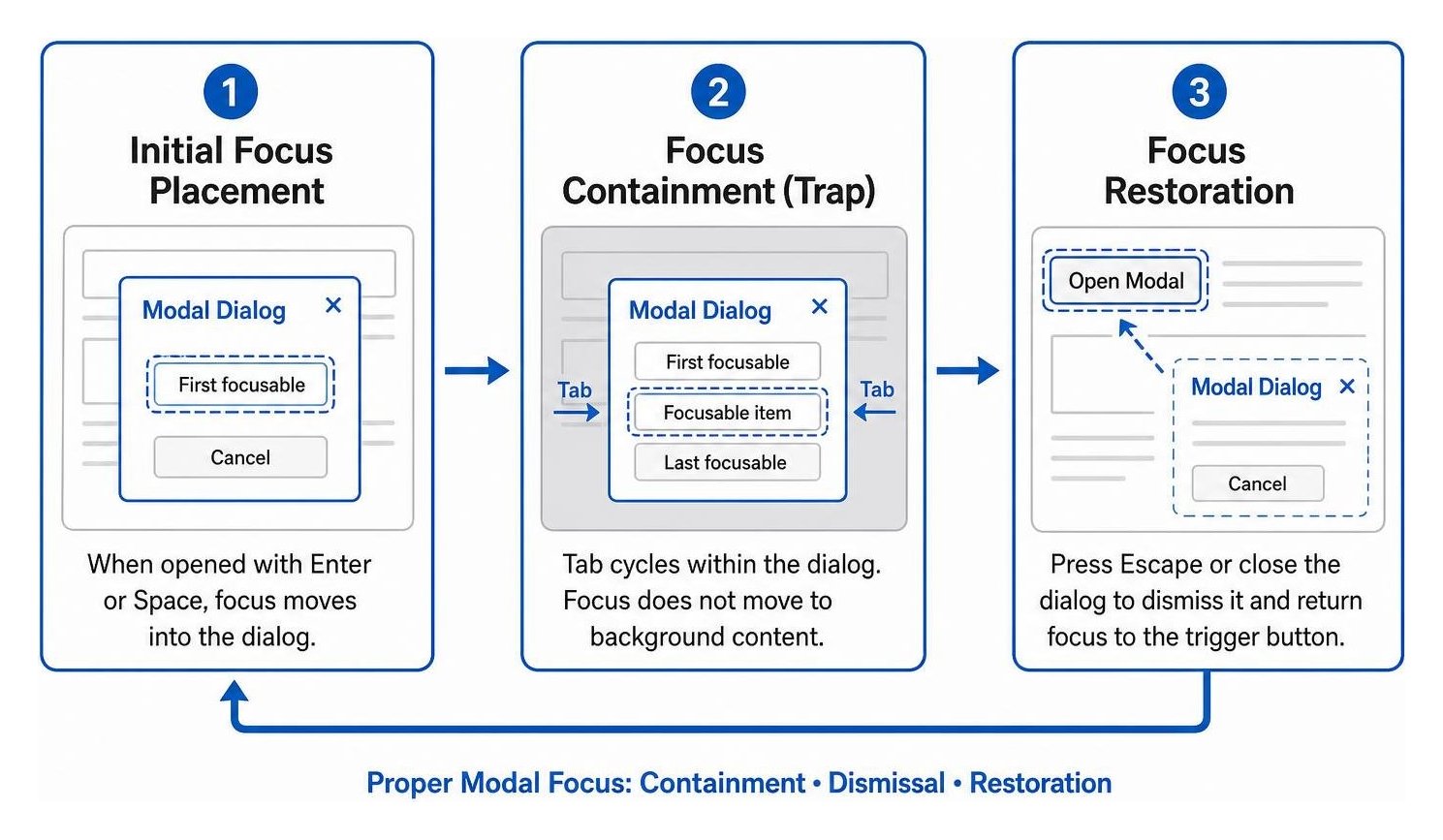
- Initial Focus Placement: When a user triggers a modal button with Enter or Space, keyboard focus must immediately move into the dialog (typically to the first focusable element or the close button).
- Focus Containment (Trap): Pressing Tab repeatedly must cycle focus exclusively within the modal. Focus must not leak into background links or headers.
- Focus Restoration: Pressing Escape or selecting the close button must dismiss the dialog and return focus directly to the button that opened it.
For composite widgets like tab panels and carousels, verify that they implement a roving tabindex pattern, where Tab moves into the group and arrow keys switch between individual sub-items.
Overcoming Common Keyboard Barriers: How Can You Find and Fix Them?
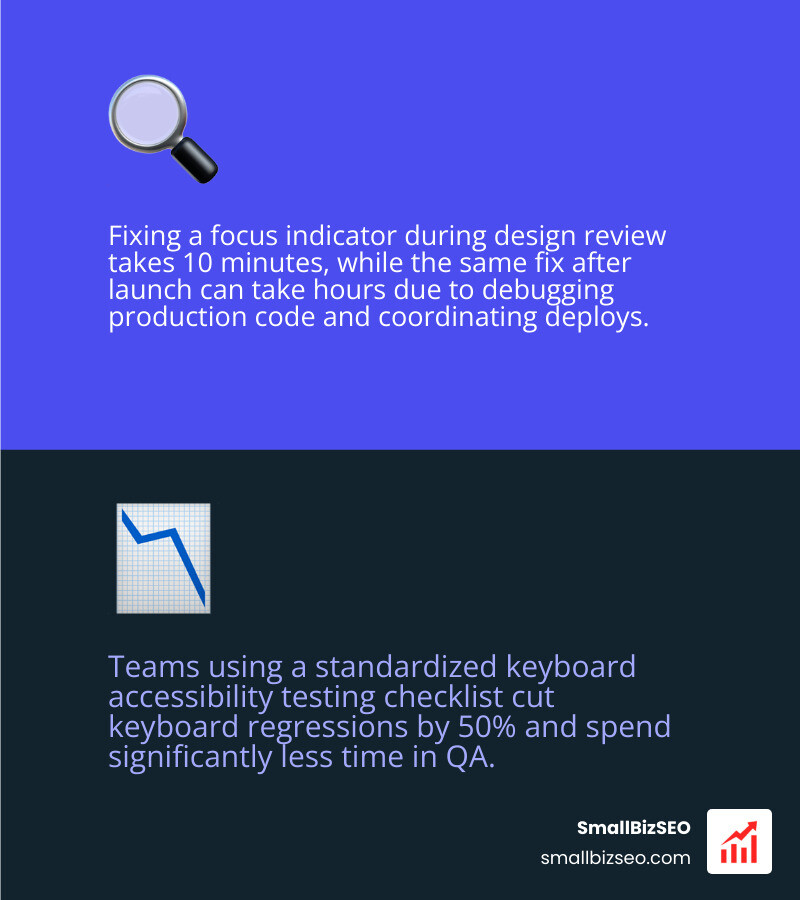
Fixing keyboard barriers early in your development pipeline saves significant time and resources. A focus indicator fix in design review takes 10 minutes. The same fix after launch takes hours because you are debugging production code, coordinating deploys, and explaining to stakeholders why keyboard users cannot complete forms. Teams that use a standardized testing checklist cut keyboard regressions by half and spend far less time in QA.
How to Detect and Resolve Hidden Keyboard Traps and Skip Link Failures
A keyboard trap occurs when a user moves into a section of content but cannot get out of it using standard keystrokes. Common causes include unmanaged third-party widgets, date pickers, and infinite media carousels.
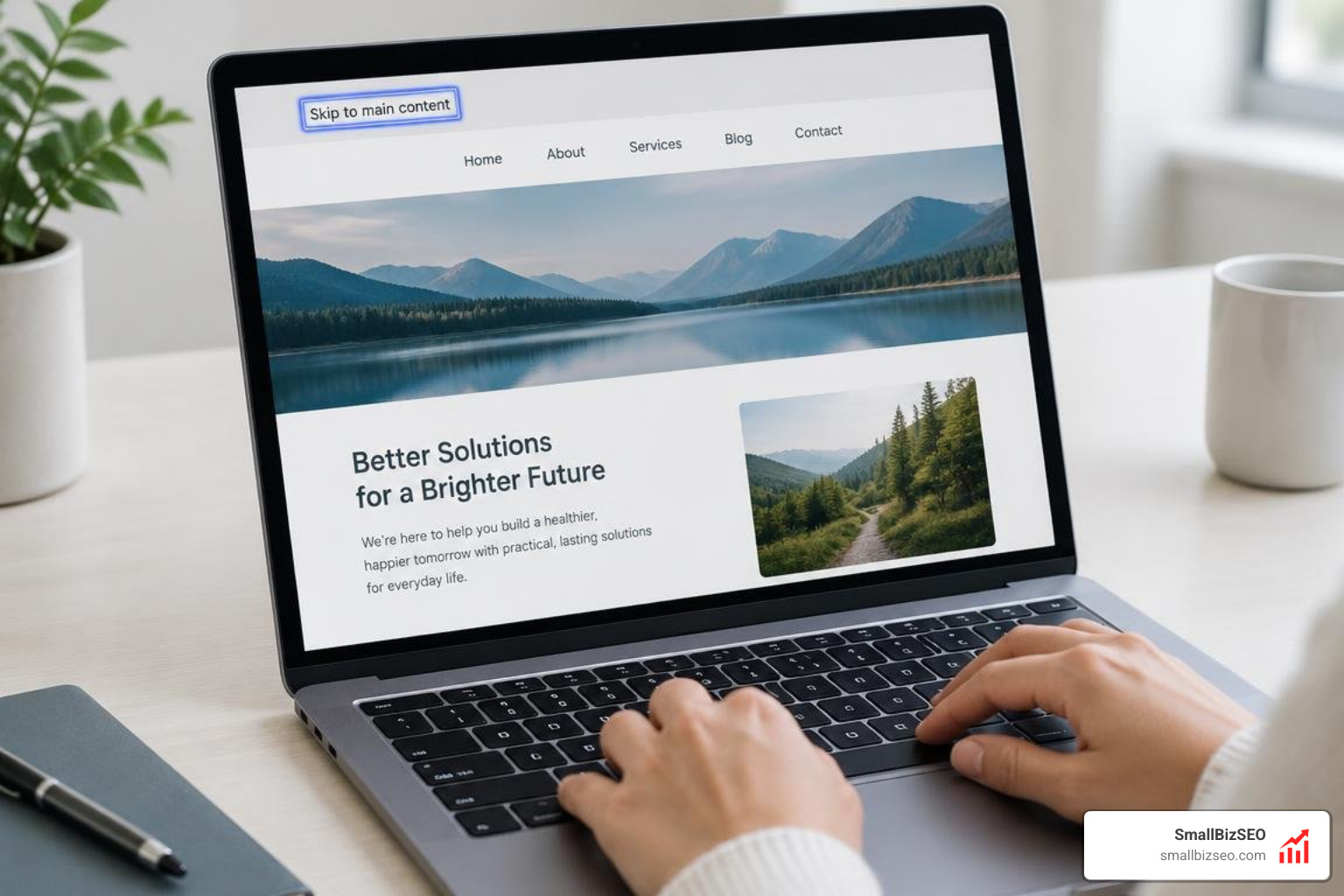
Watch for these specific issues:
- Trapped Focus Areas: If Tab stops advancing and Shift+Tab fails to exit, you have encountered a trap. Ensure every custom overlay provides a clear keyboard escape method.
- Skip Navigation Links: A functional "Skip to main content" link must be the very first focusable element on the page. It should become visible on focus and jump the user directly past repetitive header menus into the main article area.
- Non-Semantic Elements: Replacing clickable elements with native
ortags automatically restores built-in keyboard activation without requiring complex event handlers.Auditing these elements is an essential part of an overarching technical SEO audit guide, ensuring that your code is clean, semantic, and easy for both assistive tech and search bots to parse.
Why Do Manual Keyboard Audits Find Problems Automated Scanners Can Miss?
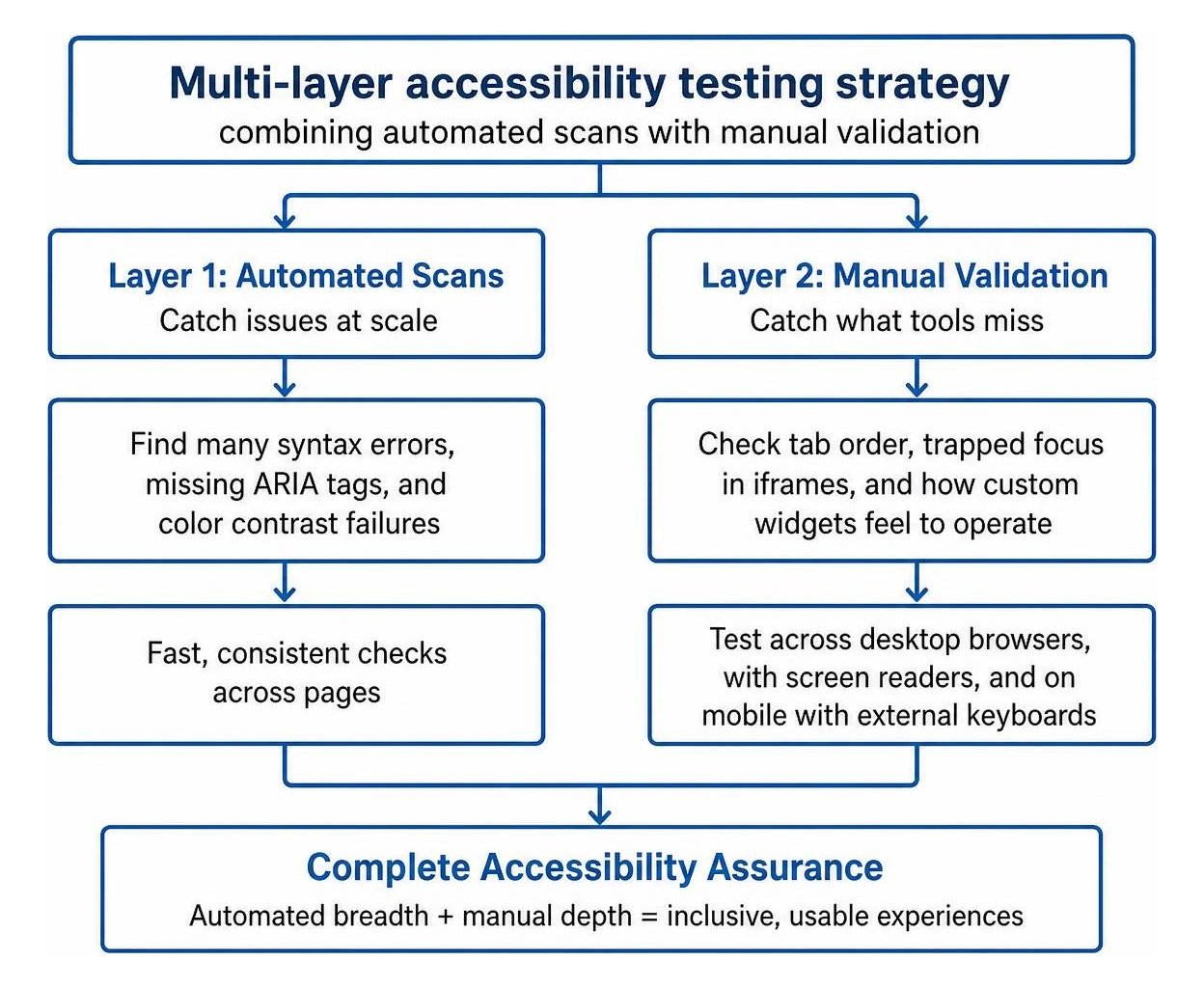
Automated accessibility tools catch many syntax errors, missing ARIA tags, and color contrast failures at scale. However, automated scanners cannot tell you if your tab order makes logical sense, if focus is trapped in an iframe, or if a custom widget feels natural to operate.
A thorough audit combines manual keyboard testing across desktop browsers, testing with screen readers like NVDA or VoiceOver, and checking responsive layouts on mobile devices paired with external Bluetooth keyboards.
Take Action on Your Website's Keyboard Usability Today
Manual keyboard navigation testing is one of the fastest, most effective ways to make your digital experiences inclusive and legally compliant. By disconnecting your mouse for just fifteen minutes, you can uncover hidden barriers that block users from completing purchases, filling out forms, or reading your content.
If you want a complete evaluation of your website's technical health, structural accessibility, and search performance, explore our professional accessibility audit services at SmallBizSEO. Our data-driven team will help you build an accessible, high-performing site that welcomes every visitor.