Silence Is Golden: A Practical Guide to Empty Alt Attributes for Web Accessibility

When Should Decorative Images Use Empty Alt Attributes?
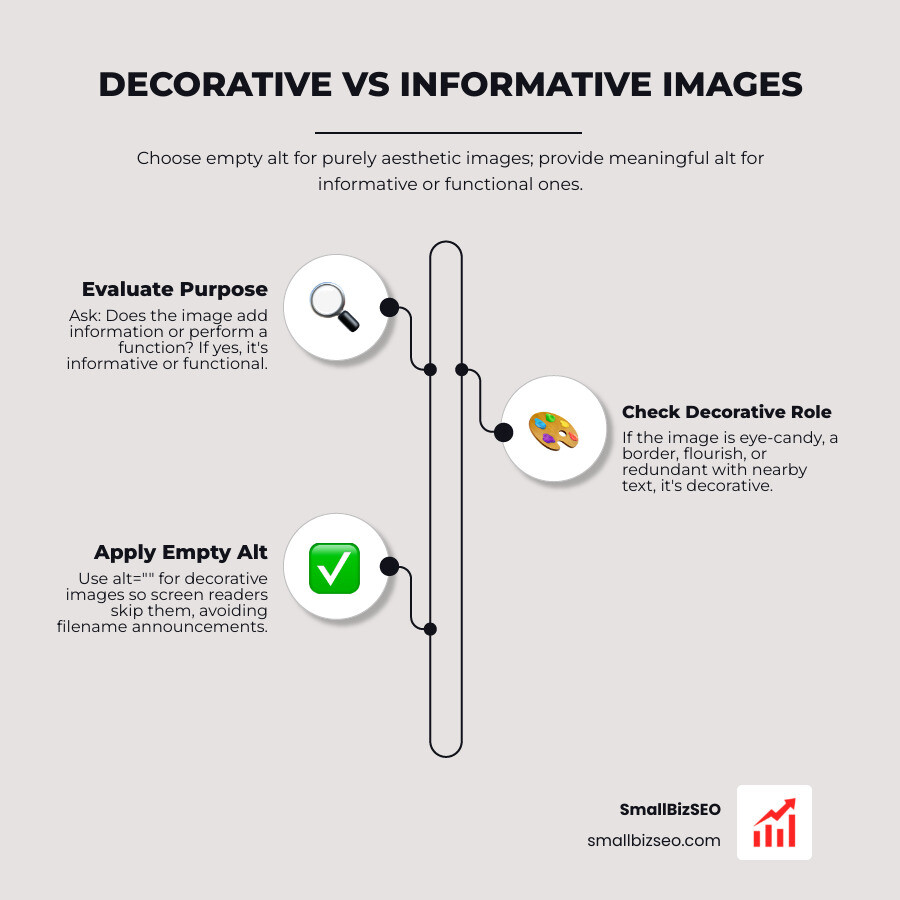
The answer to when decorative images should use empty alt attributes is simple: if an image adds no information and does nothing on its own, give its HTML image element alt="". A border, background flourish, or icon beside a clear text label may qualify. If removing the image would hide useful information or make an action unclear, give it meaningful alt text instead.
The empty attribute tells screen readers the image can be skipped. Leaving the attribute out is different: some screen readers may announce the file name, adding noise instead of helping someone use the page.
I'm Clayton Johnson, founder of SmallBizSEO, where my work in technical SEO and content strategy helps small businesses build clearer, more useful websites. I'll walk through when decorative images should use empty alt attributes and how to check that important images still have a useful text alternative.
When Should Decorative Images Use Empty Alt Attributes?
An image should use an empty alt attribute whenever it serves purely aesthetic purposes, provides visual ambiance, or restates information already conveyed in adjacent text. When you assign a null alt attribute, assistive technologies know they should skip the graphic completely.
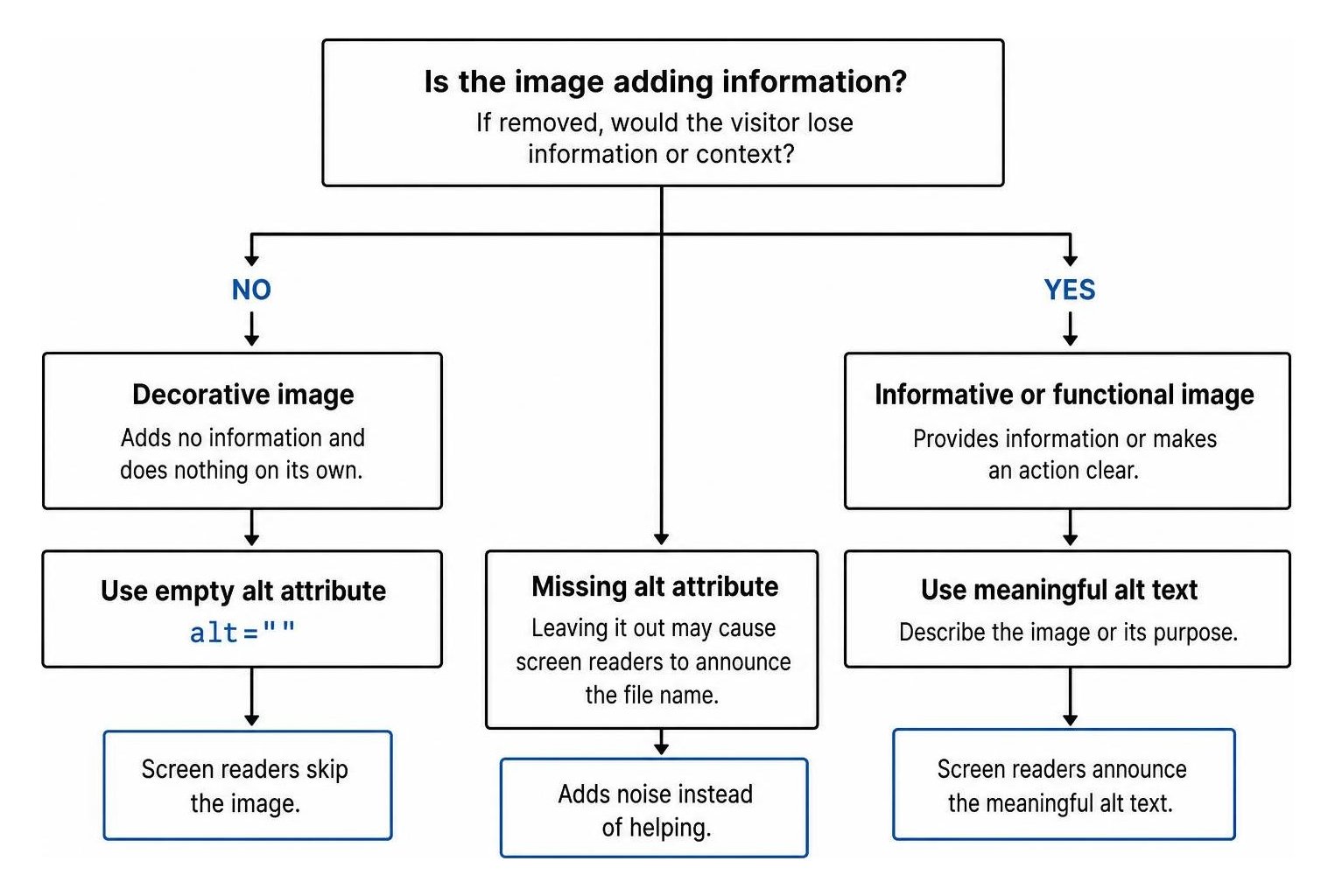
According to authoritative accessibility resources like the Decorative Images tutorial by the W3C Web Accessibility Initiative, every image element requires an alt attribute, but only meaningful graphics require descriptive text. For non-text content, authorial intent is everything. If visual media exists purely for eye-candy or page design styling, including an empty alt attribute removes it from the accessibility tree so it creates zero auditory distraction for assistive device users. Incorporating these standards is an essential component of comprehensive technical SEO that balances user experience with search engine compliance.
How Can You Tell a Decorative Visual from an Informative Image?
You can identify decorative visuals by asking a single question: If this graphic were removed entirely, would the visitor lose any actual information or context? If the answer is no, the graphic is decorative.
Common examples include:
- Visual eye-candy, such as a generic stock photo of abstract shapes behind a headline
- Decorative borders, corner graphics, and flourish dividers between paragraphs
- Spacer images used for layout alignment
- Redundant icons positioned right next to descriptive text labels
When planning visual content optimization, distinguishing between image roles keeps your website organized and compliant:
| Image Type | Primary Purpose | Proper Alt Attribute Treatment | Screen Reader Behavior |
|---|---|---|---|
| Informative | Conveys critical facts, charts, photos, or diagrams | Detailed, concise text description | Announces descriptive text aloud |
| Functional | Serves as an interactive trigger (e.g., standalone print icon) | Text describing the action taken | Announces button or link action |
| Decorative | Aesthetic flair, styling, ambiance, or duplicate visual icon | Empty attribute (alt="") |
Skips element with complete silence |
How Should You Implement Empty Alt Attributes, ARIA, and CSS?
To mark an image as decorative in HTML, write the tag with an empty string: alt="". Do not insert a space between the quotes (alt=" "), as some screen readers may interpret a space character as a missing label or announce the word "graphic."
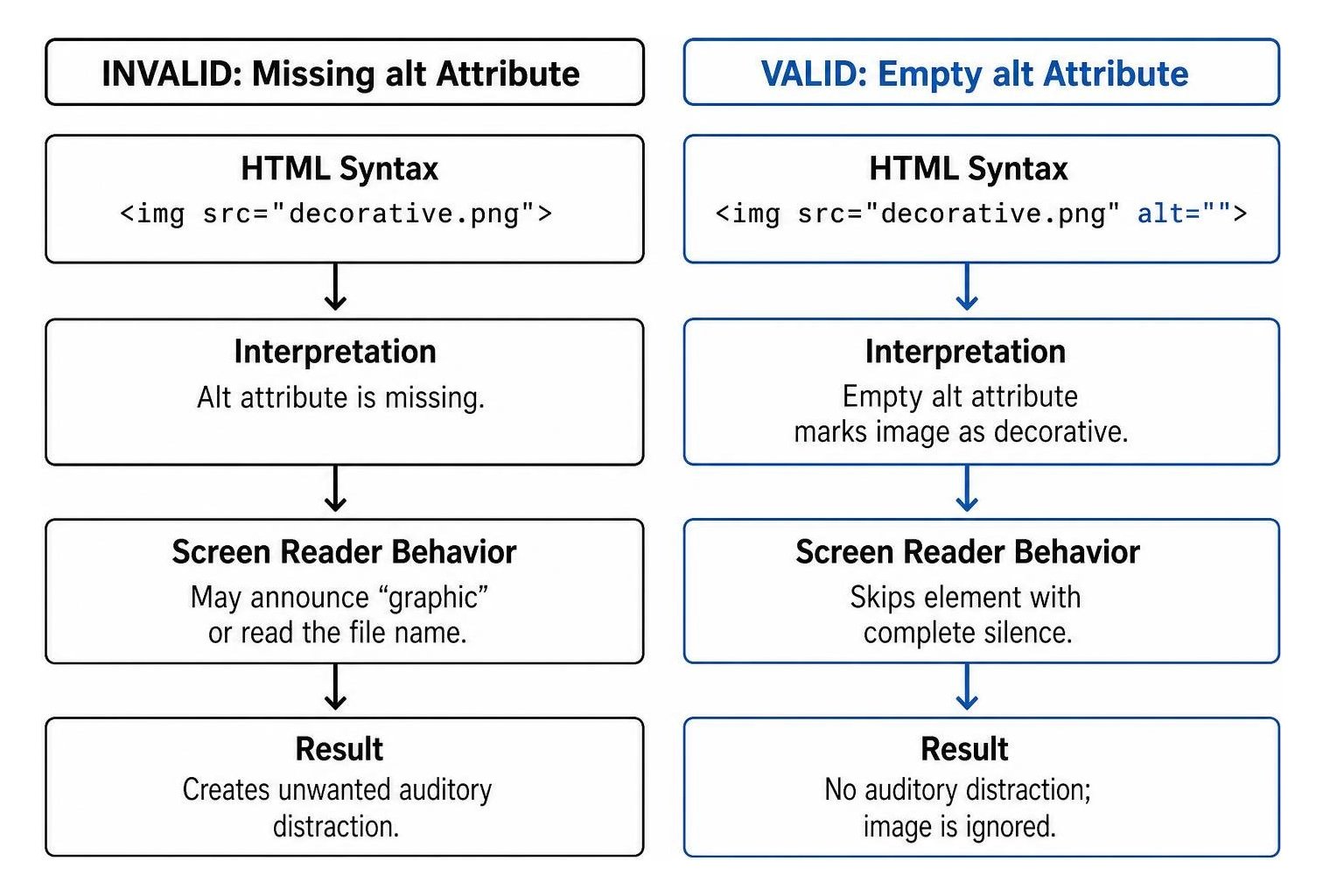
Developers can also reinforce decorative markup using ARIA attributes like role="presentation" or role="none". These attributes tell assistive technology to strip away the implicit semantic meaning of the element. However, standard empty alt attributes enjoy broader, more consistent support across older browsers and screen readers.
For modern websites and digital publications:
- Prefer CSS background images whenever a graphic serves no semantic purpose. Background styling in CSS is naturally excluded from the accessibility tree.
- For inline SVG graphics that are purely decorative, apply
aria-hidden="true"directly to the SVG container so it is completely ignored by screen readers. - In digital publishing formats like EPUB, always provide clean null alt tags on chapter flourishes and ornamental headers to ensure uninterrupted reading flows.
Which Real-World Layouts Need Empty Alt Attributes?
Empty alt attributes are required whenever visual elements share space with direct textual equivalents or serve as secondary decoration inside clickable modules.
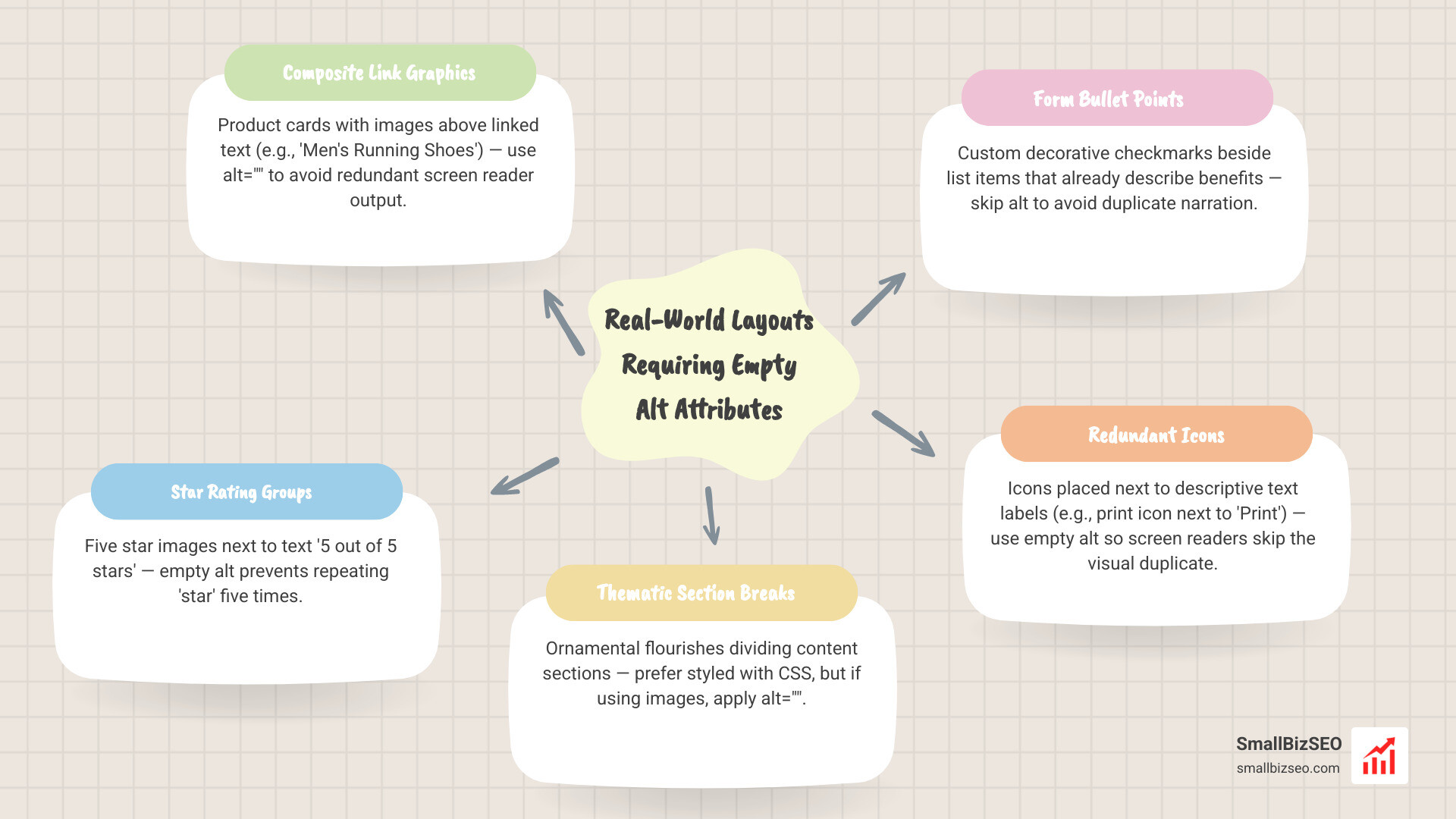
Here are the most common web design scenarios requiring empty alt attributes:
- Composite Link Graphics: An e-commerce product card containing an image of shoes right above the linked text "Men's Running Shoes." Placing
alt=""on the image avoids reading "Men's Running Shoes" twice. - Star Rating Groups: A review display with five star images next to text that reads "5 out of 5 stars." The individual star images should have empty alt attributes to avoid repeating "star" five times.
- Thematic Section Breaks: Ornamental flourish images dividing sections. (When creating semantic breaks, using a standard
- Form Bullet Points: Custom decorative checkmarks or icons placed directly beside list items that already clearly describe their benefits.
How Do Accessibility Rules, SEO Audits, and CMS Platforms Handle Empty Alt Text?
Automated SEO audit tools often flag empty alt attributes as missing text errors, but these warnings are usually false alarms for purely decorative assets.

Search engines like Google rely on alternative text to understand the context of non-text media for image search indexing. However, search crawlers do not expect or require descriptive alt text on layout graphics, dividers, or background flourishes. Applying empty alt tags on non-informative media supports effective on-page SEO strategies by keeping your semantic content focused and free of keyword stuffing.
How Can You Handle SEO Audit Warnings and CMS Workflows?
When audit platforms like Ahrefs, Semrush, or Bing Webmaster Tools flag empty alt attributes, review the flagged URLs to confirm whether the images are informative or decorative. If an image is purely decorative, you can safely dismiss the warning in your audit tool dashboard.
Most modern content management systems and learning platforms support decorative images out of the box:
- Shopify & Webflow: Use built-in decorative checkboxes in image settings to write empty alt attributes directly into the rendered HTML.
- Rich Text Editors (Canvas, Blackboard, WordPress): Check the "Mark as decorative" option when uploading visuals, or open the HTML source view to ensure
alt=""is applied correctly. - Custom Themes: Inspect your live page templates to verify that theme updates or gallery plugins do not hardcode unnecessary alt text or strip out empty attributes.
How Do WCAG 1.1.1 and Accessibility Risks Apply to Empty Alt Text?
Under WCAG Level A Success Criterion 1.1.1, all non-text content presented to users must have a text alternative, except when the visual is purely decorative. For decorative content, the guideline explicitly specifies that it must be implemented in a way that allows assistive technologies to ignore it.
Understanding WCAG criteria is essential for mitigating digital compliance risks. Failing to properly format alt attributes can create serious barriers for visitors using assistive technology:
- When alt attributes are omitted entirely, screen readers often fall back to reading raw file names like
IMG_09823_final_banner.pngcharacter-by-character. - Over-describing decorative elements creates auditory clutter that slows down navigation.
- Missing accessible attributes remains the single most common failure in web accessibility audits.
To ensure your digital assets balance full legal compliance with search visibility, check out our actionable guide to alt text.
Building a Cleaner, More Accessible Web Experience
Mastering alternative text is not about filling every image tag with descriptive prose; it is about providing clear communication where needed and deliberate silence where visual flair takes over. By applying empty alt attributes (alt="") to decorative elements and reserving rich, concise descriptions for informative visuals, you create a streamlined experience for assistive technology users while maintaining clean technical SEO.
Review your digital media library today, update redundant layout graphics with proper null attributes, and ensure your website welcomes every visitor efficiently.