How to Search Keywords in Google Keyword Planner: 3 Methods That Guarantee Results

How to Search Keywords in Google Keyword Planner: 3 Methods That Guarantee Results
Setting Up Google Keyword Planner for Free
Setting up Google Keyword Planner is straightforward, even if you never intend to run paid search advertisements. Google provides this utility inside the Google Ads platform to help businesses discover search terms, estimate potential traffic, and outline budgets.
Accessing the Tool Without Running Paid Ads
To access Keyword Planner without spending money on campaigns, navigate to the Google Ads homepage and select the option to create a new account. When prompted to set up your first campaign, choose the option to switch to Expert Mode or Skip campaign creation.
Google requires you to enter basic business and currency details during account creation. While you may be asked to enter billing details to activate basic features like discovering new terms, you do not need an active daily budget. If a draft campaign is created automatically during sign-up, simply pause or delete it immediately from your account dashboard. Once logged in, click Tools in the top navigation bar and select Keyword Planner under the Planning menu.
How to Search Keywords in Google Keyword Planner: The 3 Core Methods
Mastering how to search keywords in Google Keyword Planner requires choosing the right discovery entry point. Depending on whether you are brainstorming concepts, evaluating a competitor, or auditing an existing list, Google Ads gives you three distinct methods.
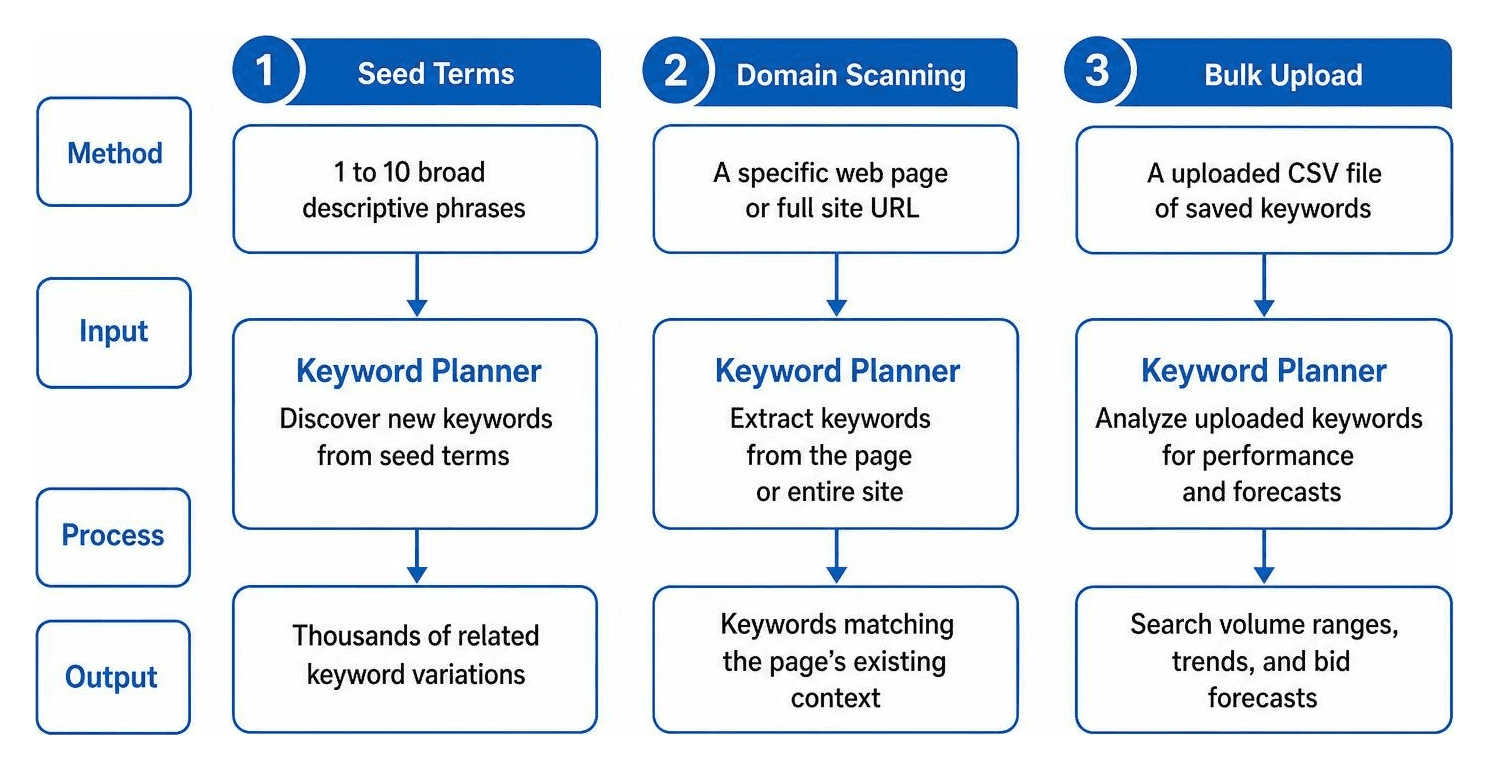
| Method | Best Used For | Primary Input | Key Output |
|---|---|---|---|
| 1. Seed Terms | Topic expansion and discovering new product categories | 1 to 10 broad descriptive phrases | Thousands of related keyword variations |
| 2. Domain Scanning | Analyzing competitor content and finding page-specific gaps | A specific web page or full site URL | Keywords matching the page's existing context |
| 3. Bulk Upload | Validating pre-existing lists from outside research | A uploaded CSV file of saved keywords | Search volume ranges, trends, and bid forecasts |
Method 1: Using Seed Terms for How to Search Keywords in Google Keyword Planner
The most common entry point for how to search keywords in Google Keyword Planner is using seed keywords. Seed terms are base words or short phrases that describe your business offerings.
To start, click Discover new keywords and enter up to 10 descriptive terms. When choosing seeds, think like your customer. Avoid overly generic single words like "shoes" and avoid overly long full questions like "where can I buy comfortable red running shoes for outdoor trails." Instead, use moderate category phrases like "running shoes" or "trail footwear." According to Google Ads Help guidelines on finding new keywords, avoiding initial descriptive adjectives yields cleaner, more relevant seed expansions.
Method 2: Scanning Domains for How to Search Keywords in Google Keyword Planner
If you want to see what terms a specific web page targets, use the URL entry option. Inside Discover new keywords, click the Start with a website tab.
You can enter your own URL to uncover terms related to your content, or paste a competitor's URL to see the terms Google associates with their landing page. You can choose to scan the entire website or restrict the search to a specific subpage. Full-website scanning across larger sites may take time to populate full keyword sets.
Method 3: Uploading Bulk Keyword Lists for Search Volume and Forecasts
If you already have a pre-assembled list of terms from content audits or team brainstorming, select Get search volume and forecasts.
This method allows you to paste your list directly into the text field or upload a CSV file containing a single column titled "Keyword." Keep system parameters in mind: every individual term must contain 80 characters or fewer and be limited to a maximum of 10 words. For more detail on managing saved plans and bulk uploads, review the Google Ads Help guide on using Keyword Planner.
Filtering and Refining Your Keyword Ideas
Entering seed terms can yield massive results—for example, entering a broad term like "SEO" can produce well over 3,000 keyword suggestions. To separate valuable search terms from generic noise, you must apply effective filtering.
Narrowing Results by Location, Language, and Categories
Google Keyword Planner allows you to tailor results based on geographic target locations, language preferences, and network options (Google Search vs. Google and search partners).
If you serve a specific geographic region, set your location filter to that exact area rather than searching nationally. You can also use the Refine keywords side panel to uncheck unwanted brand names, styles, or non-relevant product variations. Filtering early helps keep your research organized, a topic we cover extensively in our guide to demystifying SEO fundamentals from keywords to content optimization. For deeper evaluation steps, learn more about how to analyze keywords.
Uncovering Long-Tail, Seasonal, and Trending Keywords
Finding low-competition, long-tail search phrases gives small businesses an edge. Sort your results by competition level or look for high-intent phrase variations.
To catch emerging market shifts, examine the YoY change (Year-over-Year) and 3-month change percentage columns. A dramatic spike in YoY search volume points to a breakout topic, while 3-month changes highlight seasonal trends (such as holiday promotions). Utilizing these trend filters ensures you align your publishing schedule with audience demand. If you use third-party tools alongside Google, check out our guide on how to use Ahrefs for keyword research without losing your mind.
Analyzing Performance Metrics and Forecast Data
Once you filter your list, the next step is interpreting the data columns to determine commercial intent and content viability.
Interpreting Search Volume, Bid Ranges, and Unlocking Precise Estimates
Keyword Planner provides critical metrics for every term:
- Average Monthly Searches: Shows search frequency trends over time.
- Top of Page Bid (Low Range): Indicates the lower threshold advertisers pay for top-of-page ad placement.
- Top of Page Bid (High Range): Displays the higher historical cost-per-click, signaling high commercial value.
Accounts without active ad spend often see search volumes in broad ranges (e.g., 1K–10K). To unlock more precise search estimates, add your selected terms to a saved plan, navigate to the Forecast tab, and increase the Max CPC bid setting. The system's projected impression numbers will closely reflect the actual search volume for those exact terms. For a deeper breakdown of how content connects to search data, consult our beginners guide to keyword content optimization.
Structuring Ad Groups and Launching Campaigns
Organizing keywords into logical groups makes content production and ad campaign creation seamless.
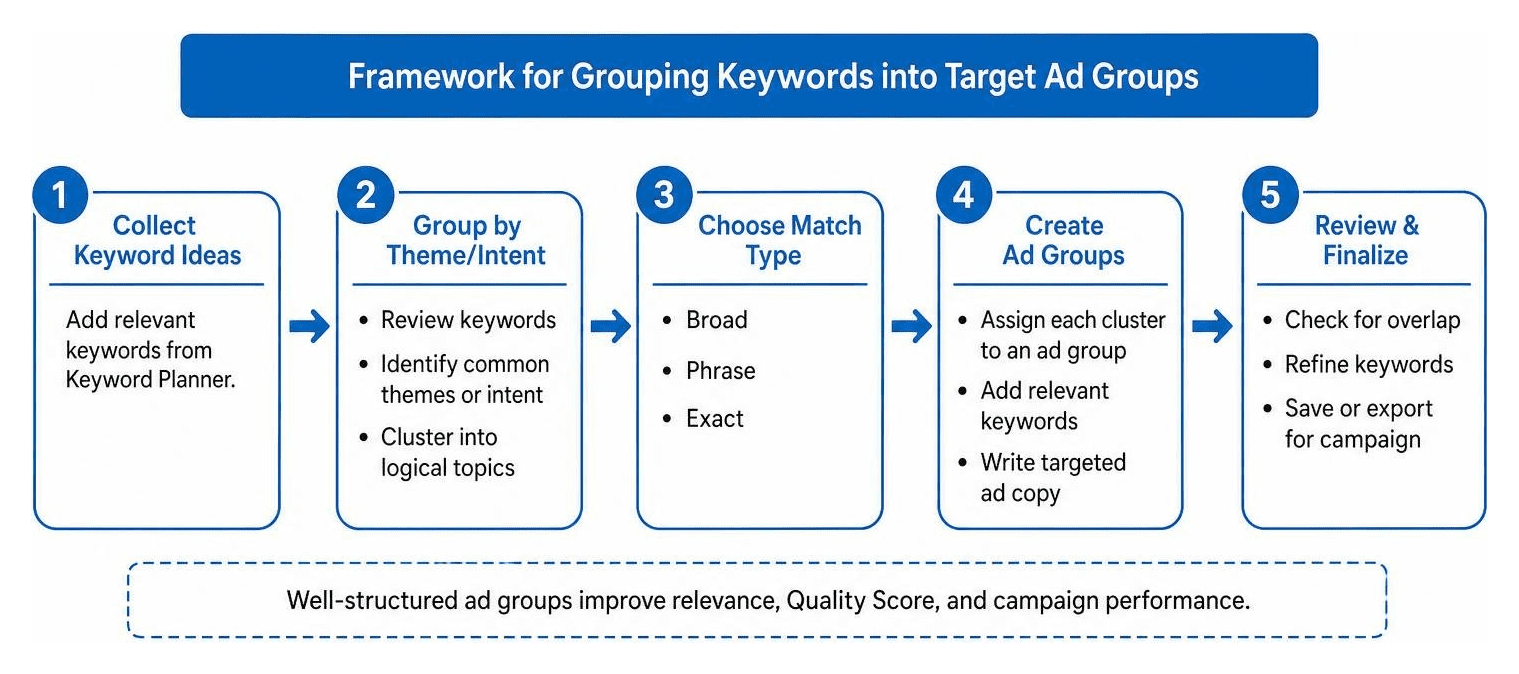
Keyword Planner includes an auto-organize feature that groups keyword ideas by category or intent. Select the terms you want, assign a match type (Broad, Phrase, or Exact), and save them into custom ad groups. From there, you can export your plan to a CSV file or move your planned keywords directly into an active Google Ads search campaign with a few clicks. For strategic campaign structuring, read our full breakdown on keyword gap analysis what it is and how to do it right.
Troubleshooting Common Keyword Planner Issues
While Google Keyword Planner is reliable, you may occasionally run into platform restrictions or interface errors:
- Missing Data for Sensitive Categories: Google limits search metrics and forecasts for topics subject to strict privacy or regulatory policies, such as healthcare, medical treatments, financial services, or adult products.
- Data Discrepancies: If metrics look unusual, check your login path. Logging in via a Manager Account (MCC) can display different aggregated data than logging directly into an individual child account.
- Loading Errors and UI Freezes: Clear your browser's cookies and cache, open an Incognito window, or try a different browser.
- Character Limit Warnings: Ensure uploaded CSV lists adhere strictly to system limits: 80 characters or fewer per line and no more than 10 words per phrase.
Frequently Asked Questions About Searching Keywords in Google Keyword Planner
Is Google Keyword Planner completely free to use?
Yes. Google Keyword Planner is entirely free to access with a Google Ads account. While you must complete your account registration and enter billing information to unlock basic features, you do not need to run active paid ads or spend money to perform research.
Why are search volume estimates displayed in broad ranges?
Google Ads shows search volume in broad ranges (such as 100–1K or 1K–10K) for accounts without active, continuous ad spend. To view precise impression estimates, add terms to a saved plan inside Keyword Planner and review the projected impressions in the Forecast tab under a maximized bid setting.
What should I do if my keyword search yields missing data or errors?
First, ensure your search terms do not violate sensitive content policies (like health or finance restrictions). Next, verify your targeting parameters, such as location and language settings. If the platform fails to load, clear your browser cache or switch to an Incognito window.
Maximize Your Keyword Strategy with SmallBizSEO
Knowing how to search keywords in Google Keyword Planner is a fundamental skill for digital growth. By expanding seed terms, scanning competitor web pages, applying local filters, and reviewing forecast bids, we turn raw metrics into actionable publishing plans.
Building a robust online presence requires taking these keyword insights and translating them into authoritative, search-optimized content. At SmallBizSEO, we help businesses implement data-driven frameworks that accelerate search rankings and build E-E-A-T authority. Explore our comprehensive services through our SEO services guide or take your publishing further with our dedicated SEO content services. Ready to turn your search research into measurable business growth? Learn how to Master Keyword Analysis with SmallBizSEO today!