Remove AI Overviews from Google Search with Simple Extensions

How Can You Turn Off AI Overviews in Google Search?
Google has no setting to turn off AI Overviews. To remove them from a search, select the Web filter. To hide them while browsing, use an extension that removes the AI Overview box. You can also set up a custom search engine with udm=14 to open Google's Web results by default. Extensions hide the box on your screen; they do not disable the feature in Google Search.
I'm Clayton Johnson, founder of SmallBizSEO, where I help small businesses understand changes in search visibility. I write guides for questions like "turn off ai overviews," drawing on my work in SEO, content strategy, and AI-driven search.
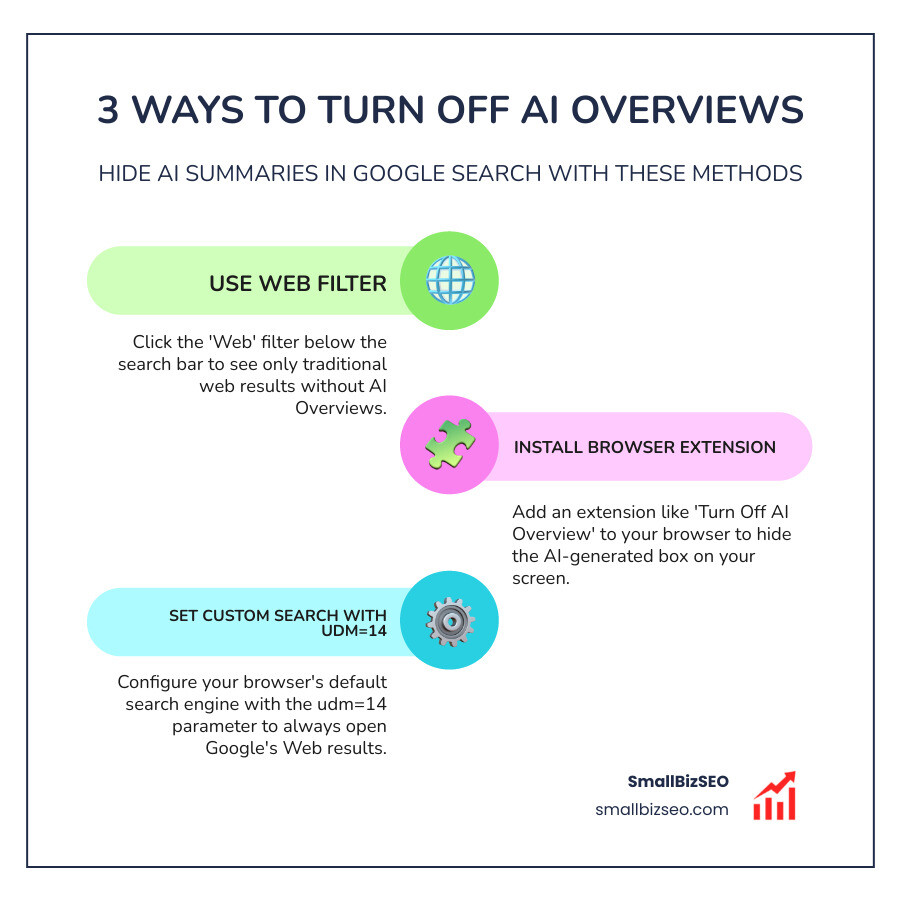
Turn off ai overviews terms made easy:
What Are Google AI Overviews, and Why Do Some Searchers Want to Hide Them?
AI Overviews are automated, generative summaries displayed at the very top of Google Search results. While designed to synthesize complex answers quickly, many users choose to turn off AI Overviews due to factual hallucinations, intrusive page clutter, and the displacement of verified source links.

When searchers enter queries, generative algorithms assemble synthetic paragraphs by scraping text across the web. However, these systems are not flawless. Studies show that AI-generated answers experience error rates ranging between 10% on general topics to over 50% on highly technical or niche subjects. Beyond factual inaccuracies, the massive summary card pushes standard organic listings far down the page. This screen clutter disrupts standard browsing habits and forces users to scroll through machine-generated text when they simply wanted direct access to primary sources.
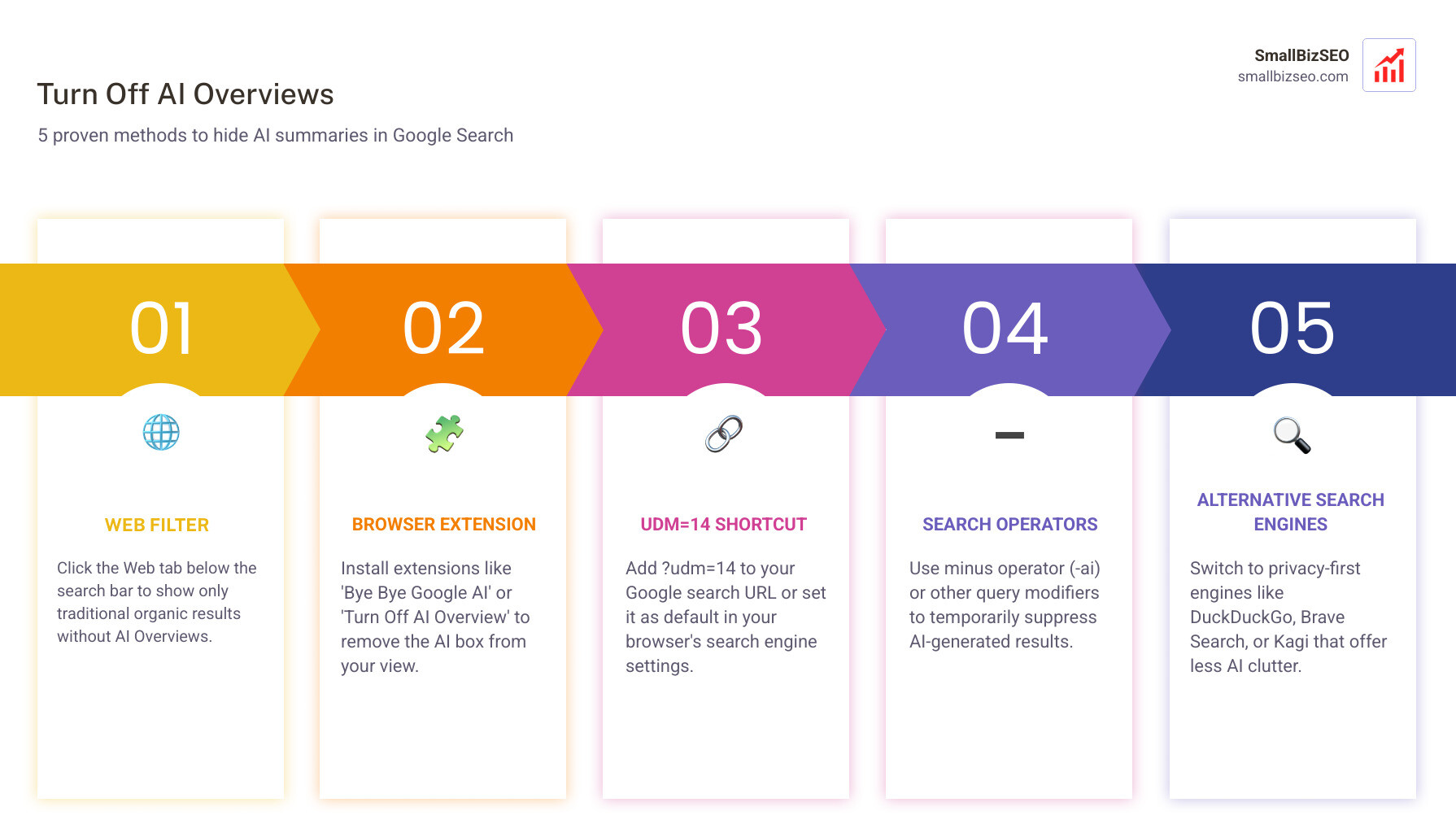
How Can You Hide AI Overviews in Google Search?
You can bypass generative summaries by installing browser add-ons, applying Google's native Web filter, or creating custom search engine shortcuts that append special parameters to every query.

Why Can’t You Turn Off AI Overviews in Standard Search Settings?
Google treats generative snapshots as a core layout component rather than an optional setting. You cannot turn them off with an account-level switch because Google considers them built into the core search experience, much like Knowledge Panels.
According to official Google documentation on how to find information in faster & easier ways with AI Overviews in Google Search, these automated summaries are standard search components. While users initially tested early iterations inside Search Labs, the system has rolled out widely across default search pages.
Every new layout change represents an evolving SERP feature designed to keep users on the results page. For content creators and businesses, this layout shift presents major challenges; our analysis on the impact of Google AI Overviews on organic search traffic shows how top-ranking pages lose visibility when automated summaries take over the screen.
Which Browser Extensions Can Hide AI Overviews and Ads?
Browser extensions provide the most seamless desktop solution by using custom stylesheets to suppress the automated summary block from your screen.

Several community-developed tools reliably remove these visual blocks:
- Bye Bye, Google AI: A popular add-on that uses lightweight CSS rules to hide summary cards, discussion boards, and promotional widgets.
- Turn Off AI Overview (& Other Google Features): Available on the Chrome Web Store, this extension gives users one-click toggles to remove summary cards, sponsored sections, and featured snippets while operating locally without logging your search queries.
- uBlock Origin: If you already use this ad blocker, you can add a custom cosmetic filter rule (
google.com##.M8OgIe) within the dashboard under the "My Filters" tab to hide the container instantly.
Before installing any third-party browser add-on, check its permissions to ensure it operates locally without transmitting your personal browsing history to outside servers.
How Can You Use the Web Filter and UDM=14 to Hide AI Overviews?
Google offers a built-in "Web" tab that removes AI snapshots, video carousels, and visual snippets, leaving only plain, traditional text links. You can make this clean view your default search behavior by setting up a custom search engine parameter.
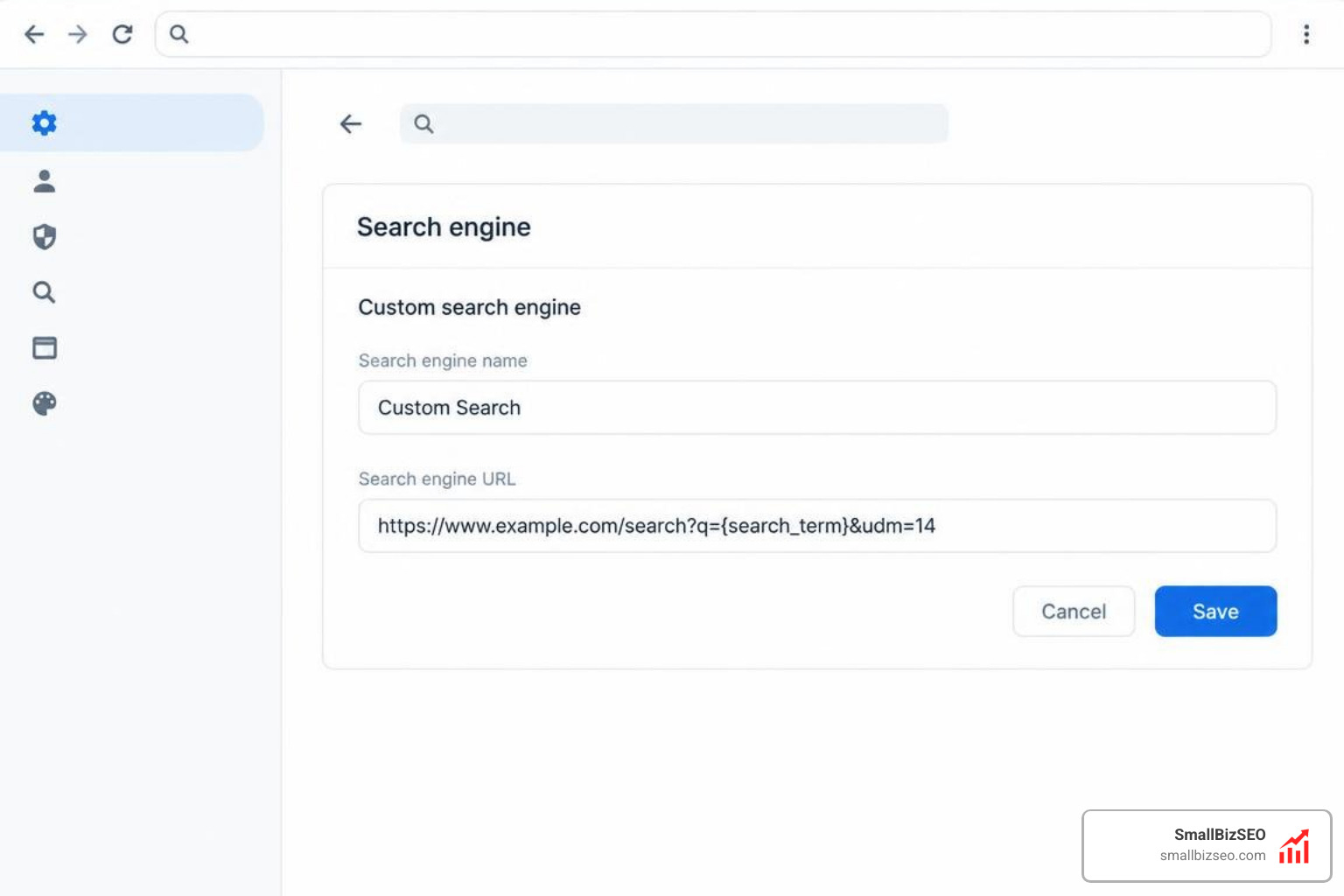
The URL parameter udm=14 commands Google to serve clean text results. You can automate this process in your browser settings:
- Open your browser settings and navigate to the search engine management menu.
- Click "Add" to create a new search provider.
- Enter "Google Web" as the name.
- Set the search URL to:
https://www.google.com/search?q=%s&udm=14 - Save the entry and set it as your default search engine.
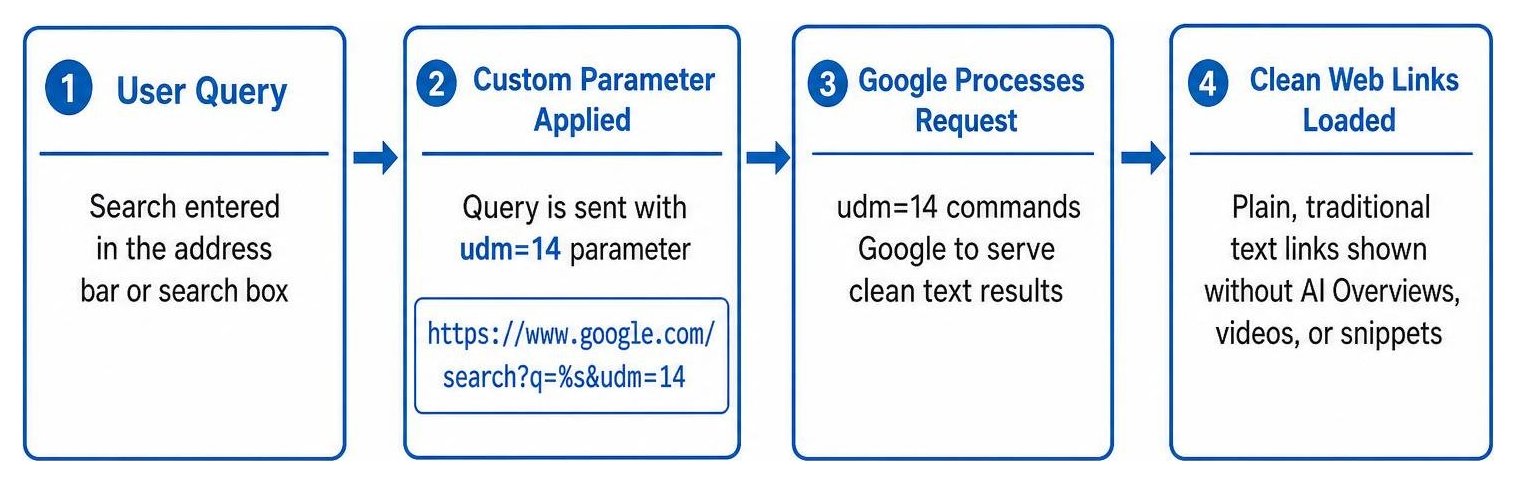
This configuration prevents zero-click search clutter from dominating your display, giving you an uncluttered interface every time you search from the address bar.
Which Query Modifiers and Search Operators Can Exclude AI Summaries?
Adding a minus operator or specific query modifiers forces the search engine to bypass automated summary generation for individual searches.
Appending -ai to the end of any query tells the backend indexer to exclude specific computational terms, which frequently suppresses the summary container altogether. Similarly, wrapping critical search terms in exact-match quotation marks signals a request for literal textual matches rather than synthesized conversational paragraphs.
These modifiers provide quick filtering without requiring browser modifications, which is especially helpful when researching precise data where organic CTR benchmarks show traditional link layouts offer more reliable information.
How Can You Bypass AI Results on Android and iOS?
Mobile users can bypass automated summaries by saving custom search URLs or adjusting mobile browser shortcuts on their smartphones.
- Android (Chrome): Visit a site that utilizes the clean parameter (such as TenBlueLinks), perform a sample search, and open Chrome Settings > Search Engine to select the newly detected Web-only engine as your default.
- iOS (Safari): While Safari does not allow manual URL parameter edits in its default search dropdown, you can install mobile content blockers or create a dedicated home screen shortcut that routes search queries through
https://www.google.com/search?q=%s&udm=14.
Which Alternatives Can You Use for AI-Free Browsing?
If you prefer an uncluttered search experience without adjusting custom settings or installing extensions, switching to an alternative search engine gives you direct control over your results.
At SmallBizSEO, our technical SEO and content strategy teams analyze how search engines evolve so businesses can adapt. We develop custom strategies for navigating AI Overviews to help brands maintain visibility across both classic organic listings and modern search platforms.
Which Privacy-First Search Engines Offer Less AI Clutter?
Several independent search providers allow you to turn off automated summaries entirely or avoid them by default:
| Search Engine | AI Summary Controls | Privacy Model | Key Advantage |
|---|---|---|---|
| DuckDuckGo | Optional AI features with complete toggle controls | Zero tracking; no personalized profiling | Clean interface with classic text results |
| Brave Search | Built-in toggle to disable AI answers completely | Independent index; strict privacy standards | Fast loading with zero machine clutter |
| Kagi | Full customization to hide or adjust AI features | Paid, ad-free subscription model | Highly customizable results and domain controls |
| Startpage | Delivers standard Google results with zero AI bloat | High privacy; removes trackers and logs | Pure Google search results without layout noise |
Taking Control of Your Search Experience
Managing how search results appear on your screen comes down to using the right tools. Whether you apply the udm=14 parameter, use a simple browser extension, or switch to an independent alternative, you can easily remove unwanted summaries and browse the web on your own terms.